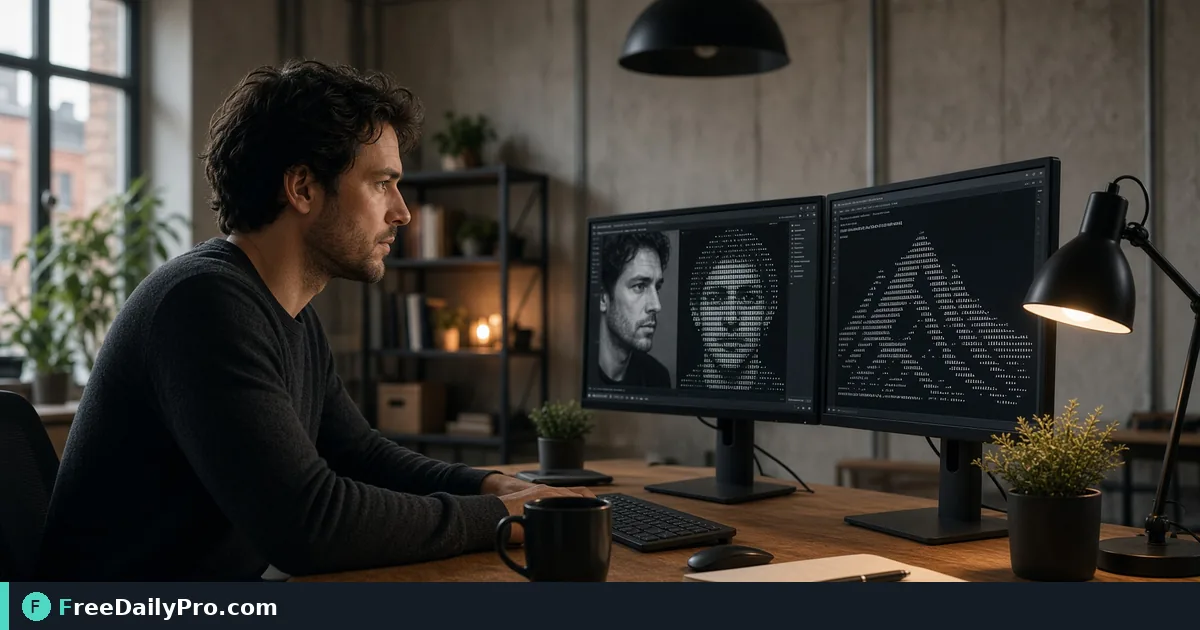
A README Banner That Fits 80 Columns, Made From Plain Text
Make a text banner for a README or terminal, pick a figlet font by width, and keep it from wrapping past 80 columns.
Your command-line tool is called NOVA CLI, it prints a one-line name on startup, and the README opens with a plain heading. A banner made of text characters gives both places some personality without an image file, a build step or a logo that breaks in a terminal. The ASCII Art Generator turns typed text into that banner and tells you how wide it came out.
In short: type the name, choose one of twelve fonts, pick left or centre alignment, copy the result, and check the width note. For NOVA CLI, eleven of the twelve fonts fit inside 80 columns and one does not.

Width is the real constraint
Most terminals default to 80 columns and many web pages show code blocks without wrapping, so a banner that is 82 characters wide either wraps into garbage or forces a horizontal scroll. The tool measures the widest line of your art and prints "N characters wide" under the preview. Past 80, it adds a warning.
Measured on the text "NOVA CLI", the widths come out like this. Mini is 30 columns and 3 lines tall. Bubble is 32 wide and 4 tall. Small is 38 by 4. Standard is 44 by 5. Doom is 47 by 6. Slant is 48 by 5. Big is 50 by 6. ANSI Shadow is 59 by 6. Graffiti is 63 and Banner3 is 64, both 6 to 7 lines. Block is 75 by 6, which just fits. Ghost is 82 wide and 9 tall, so it overflows.
The word NOVA alone is far narrower: Mini 18, Bubble 18, Small 22, Standard and Slant 26, Big 28 and Doom 26. If your product name is long, putting each word on its own line is often better than shrinking the font.
Steps in the tool
- Type your text in the box. It holds up to 60 characters, and every new line becomes a separate banner stacked with a blank line between.
- Open the Font list and pick one. The list holds Standard, Big, Slant, Small, Mini, Banner3, Block, ANSI Shadow, Doom, Graffiti, Ghost and Bubble.
- Choose Left or Centre. Centre pads shorter lines with spaces so a multi-line banner looks balanced.
- Drag the Preview zoom slider if the art is hard to read. Zoom changes only the preview, not the copied text.
- Read the width note. Under 80 means it should survive a standard terminal.
- Press "Copy ASCII Art" and paste it where you need it.
What the result looks like
With "NOVA" in the Small font, the output is four lines of underscores, bars and slashes that read as the word. In Mini it is three narrow lines, the right choice for a startup message where you still want the user's first screen to show a command prompt. Pasting either into a README, wrap it in a triple-backtick code block so Markdown does not reflow it or interpret the underscores as emphasis.
Do not use the large display fonts for everything. Block and ANSI Shadow look strong on a project page but eat six rows of a terminal that may only show 24. For a CLI that runs in a loop, a three-line Mini banner prints once and does not push real output off the screen.
Fix the broken-alignment problem first
The most common complaint is art that looks mangled after pasting. The cause is nearly always a proportional font. ASCII art only lines up in a monospaced font, so in a word processor, a chat window or a web page using the default body font, every character has a different width and columns drift. Code editors, terminals and plain-text files normally use monospaced fonts already, which is why those are the right targets.
If you must show a banner on a web page, put it in a preformatted block with a monospace font. If you must show it in a chat tool, use that tool's code-block syntax.
Characters the tool will refuse
The fonts contain plain ASCII characters only: English letters, digits and common punctuation. If your text includes accented letters, Hindi, other scripts or emoji, the tool shows a message and draws nothing until you remove them. That is a limit of the fonts, not a bug, and a product name with an accent needs a plain spelling in the banner.
Lower and upper case also look different in banner fonts. Some fonts draw lowercase letters as smaller capitals. If you want a consistent look, run the name through the Case Converter to upper case before pasting it in.
Updating a banner across files
Suppose you rename NOVA CLI to ORBIT after the banner is already pasted into the README, a man page and a changelog. Generate the new banner and use Find & Replace on the document text to swap old art for new, or simply replace the whole block. Keep the generated art in one file that the README, and any startup script, copy from, so a rename means one edit.
When the art lives in source code, remember that backslashes in many fonts are escape characters in languages such as JavaScript and Python strings. Use a raw string, a template literal or a heredoc, and test that the printed output matches what the tool showed.
Common mistakes
Choosing a font by looks and checking width afterwards. Look at the width note before copying.
Pasting into a proportional-font field and concluding the tool is broken.
Trailing spaces. The tool strips trailing whitespace from each line, which keeps diffs clean, so do not add padding by hand.
Using Centre alignment for a banner that is already as wide as your target. Centre pads with leading spaces, which can push the widest line past the limit.
Printing a nine-line banner on every run of a script. Three or four lines is plenty.
Related tools
For converting text to binary instead of drawing it, the Binary & ASCII converter post explains that tool, and the text tools category lists the rest of the text utilities. Everything typed here is handled in your browser, and each run counts toward your 10 trial usages a day, so settle on font and text before you copy.
What would you like to put in a banner next, a project name, a section divider or a build-success message? Tell us on the contact page.