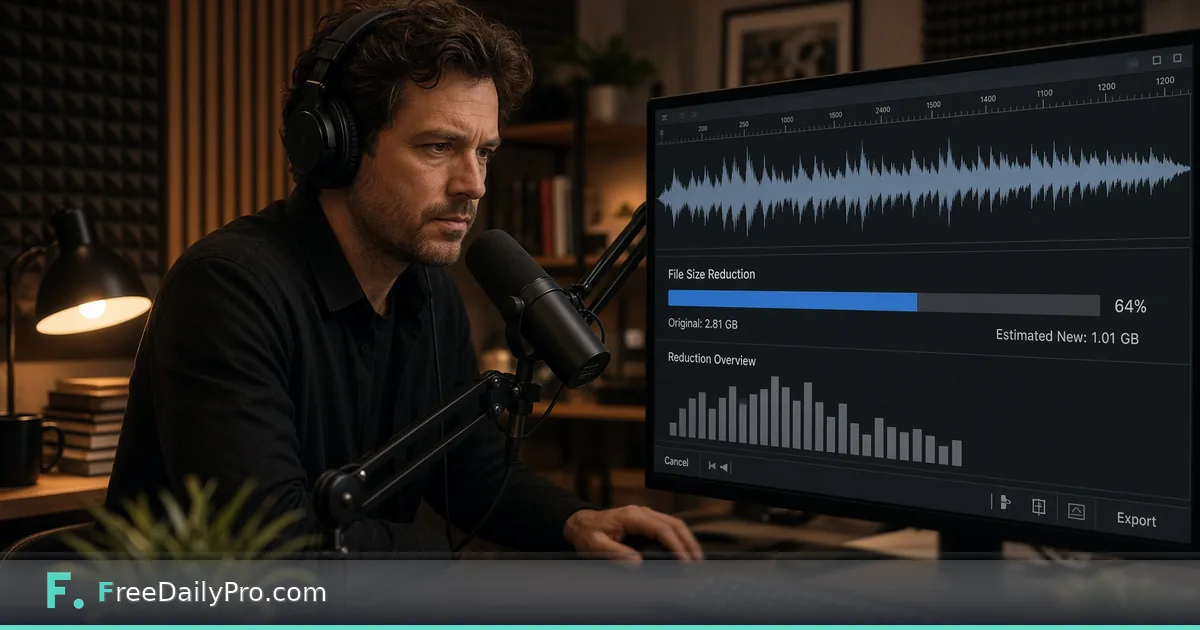
Squeeze a 28-Minute Recording Under a 25 MB Upload Limit
Shrink a long audio file to hit an exact size with Target size mode, pick a sensible bitrate, and know when mono helps.
The course platform says "maximum 25 MB per lesson file" and your recorded interview is 28 minutes of stereo WAV, about 283 MB. Dragging a slider until the number looks right wastes time. The Audio Compressor can aim at a size directly, because for audio the output size is just bitrate times duration.
The short version: switch to Target size, type 24, and the tool picks a bitrate near 116 kbps for a 28-minute file, producing an MP3 of roughly 23 MiB. The file is processed in your browser, so the recording is not uploaded to a server.

The arithmetic behind the cap
Audio size is easy to predict. A stereo 44.1 kHz, 16-bit WAV runs at about 1,411 kbps, and 28 minutes (1,680 seconds) of that is roughly 283 MiB. The same minutes as mono WAV is about 141 MiB. As MP3, 128 kbps comes to 25.6 MiB, which is just over the cap, and 96 kbps comes to 19.2 MiB, comfortably under it. A 320 kbps MP3 of the same length is about 64 MiB.
Those figures matter because portals differ on whether "25 MB" means 25,000,000 bytes or 25 MiB (26,214,400 bytes). Aim a little under the stated number, which is why 24 is a safer target than 25.
The five modes
Light, Medium and Strong aim for a file that is 10%, 25% or 50% smaller than the one you loaded, calculated from the file's length. They suit files that are already MP3 and just need trimming down. They are less useful when the source is a huge WAV, because "half of 283 MiB" is still far too big for a 25 MB portal.
Manual Bitrate gives you chips from 32 to 256 kbps. Any chip at or above the file's own measured bitrate is greyed out, because re-encoding at that rate cannot make the file smaller. Target size takes a number of megabytes, with shortcuts for 2, 5, 10 and 25. The tool divides 97 percent of your target by the duration to find the bitrate, never going below 32 kbps, and encodes once.
Steps
- Drop the audio file onto the tool. It reads the length first, so wait a moment before pressing Compress.
- Click Target size and type 24 in the box, or click one of the quick values.
- Tick "Convert to mono" if the recording is speech from one microphone.
- Press Compress Audio and wait for the progress bar.
- Play the original and compressed players side by side when they appear. Listen to a quiet passage and to the loudest laugh.
- Download. The file is named compressed_ followed by your original name with an .mp3 ending.
The output is always an MP3. If your platform demands another format, run the result through the Audio Converter.
Does mono help?
The mono option sends the audio through one channel. The target-size bitrate stays the same, so the file size does not change, but all of those bits now describe one channel instead of two. For a spoken interview recorded on a single microphone, that spends the budget where the information is. For music or a two-person interview with each voice panned to a side, keep stereo or the balance changes.
Bitrates for speech
For voice-only content, 64 to 96 kbps is usually plenty, and 128 is a widely used compromise for speech plus some music. If the file is a music-heavy intro with a long talk after it, go for 128 on a short file but accept lower on a long one. A quick check is to listen on the speakers your learners will use, not only on studio headphones.
At 64 kbps, the 28-minute interview would be about 12.8 MiB, far below the cap, which leaves room if the platform also wants a second file. There is no benefit in compressing harder than the limit demands.
Trim before you compress
Silence, a false start and the pre-roll chatter add minutes to the file. If the first 90 seconds is setup talk, cutting it with the Audio Trimmer removes 90 seconds of bits and allows a higher bitrate for what is left. A 26.5-minute file at the same 24 MB target gets about 122 kbps instead of 116. Trim first, compress second, so you do not lose quality twice.
If the recording came from a video call, pull the sound out first with Extract Audio and compress the audio alone.
Messages you may see
"Already well compressed" appears when re-encoding would make the file bigger, which happens with efficient formats such as an Opus voice note. The tool refuses to offer a larger download and suggests you keep the original. That is the right call, and in that case the fix is trimming or splitting rather than re-encoding.
If your target is too small for the length, a warning says the file will come out a little larger than requested, because 32 kbps is the floor. A one-hour recording aimed at 5 MB cannot be done: 5 MiB over 3,600 seconds is about 11 kbps.
Common mistakes
Choosing Strong on a lossless file and expecting it to meet a cap. Use Target size.
Aiming exactly at the limit. Container overhead and the portal's definition of megabyte can push you over, so leave 2 to 4 percent.
Compressing an already compressed MP3 twice. Each pass loses detail. Work from the original recording whenever you have it.
Judging quality from the filename or size alone. Always listen to the comparison players.
For more audio utilities, browse the audio tools category. Each file you process counts toward your 10 trial usages a day, so settle on your target before you press the button.
Which limit are you trying to get under next, an email attachment, a course portal or a podcast host? Let us know on the contact page.