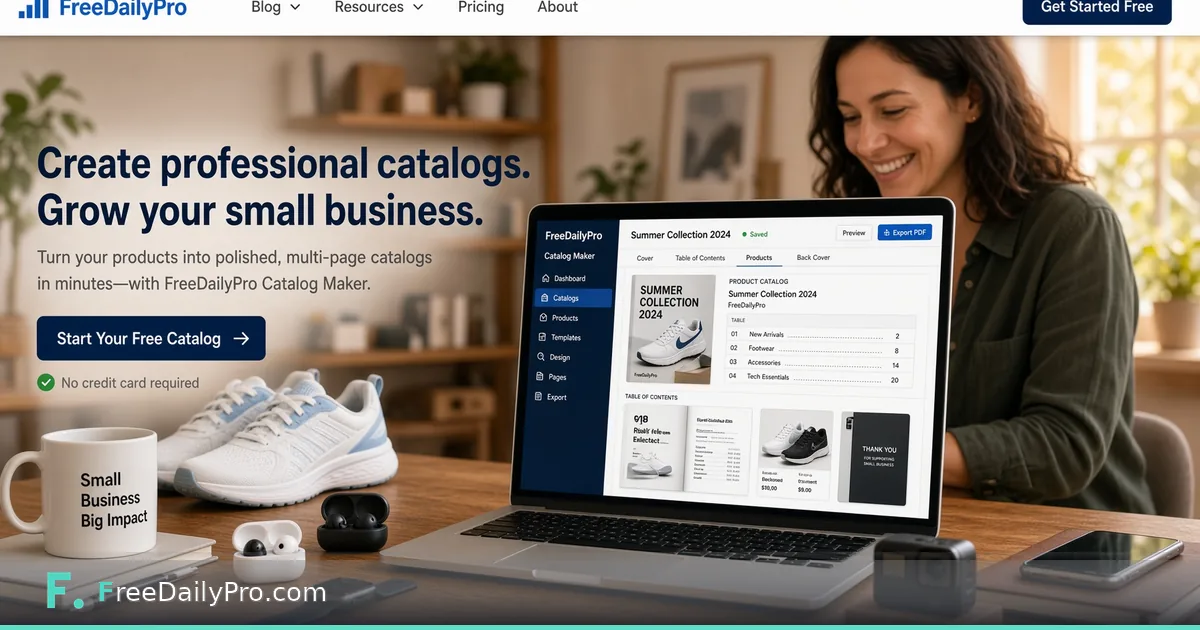
Combine Supplier Sheets and Photos into One Buyer Catalog
Use Catalog Maker's Combine files mode to join PDF sheets, Word files and images into one catalog with a cover, contents page and ordering back page.
Your supplier sent spec sheets as PDFs, the price list lives in a Word file, and the photos of two new products are phone pictures. A buyer wants one document by tomorrow. Product Catalog Maker has a second mode, Combine files, built for this: it joins the pieces you already have into a single PDF with a cover, a contents page and an ordering page at the back.
The quick version: switch to Combine files, drop in the sheets, name each section, drag them into order, switch on the cover and back page you need, and assemble. If your starting point is a spreadsheet of products, use the Product list mode instead, which is covered in a separate walkthrough.

What you can drop in
The drop zone accepts PDF, Word (.docx), plain text (.txt) and images in PNG, JPEG, WebP or HEIC. Older .doc files and spreadsheets are skipped, and a warning tells you some files were left out. If a file name is already in the list, you are told, and the file is still added.
Each file becomes a section with its own name box. That name is what appears in the contents page, so write "Ceramic range" rather than leaving "IMG_4471".
Set up the pack
Enter a catalog title and your company name, and pick a page size from the list. The cover uses the title and company, with an optional PNG or JPEG cover image; a title is required while the cover is switched on. Table of Contents and List of Images are tick boxes and both start on.
On the Cover and Price List card you can add a back page with prices, SKUs or ordering instructions typed as plain text, and one code under it: a QR code that points to your store or order form, or a real barcode in Code 128, EAN-13, EAN-8, UPC-A, Code 39 or ITF-14. A barcode needs a value that is valid for its type. To make a barcode for printing separately, Barcode Generator is the companion tool.
An optional Product Index page takes a typed list of key products or categories and sits in the front pages.
A worked pack: five files, one catalog
Imagine a candle maker with five files: a two-page PDF for the hero scent, a Word price list, a PNG of the gift set, a JPEG lifestyle photo and a text file of care instructions. Drop all five in, name them "Hero scent", "Price list", "Gift set", "Lifestyle" and "Care", and drag the price list to the end.
Turn on the cover with the gift-set image, tick Price List / Order Info for the back page, type "Orders: orders@example.com, minimum 12 units", and choose the QR code with your shop address. Press Assemble Catalog. The button then offers Download Catalog and shows the page count in its label, so you know the total before you save.
What the assembly does to your pages
Pages are scaled to fit the chosen size, so a sheet of a different shape gets white margins instead of being cropped. A mix of Letter and A4 sources in one pack will therefore look slightly uneven. If a supplier sheet carries its own page numbers, they stay on the sheet and will not match the catalog's contents page. Word files are rebuilt for the catalog rather than copied page for page, so check any complicated layout after assembly.
If the pack comes out too heavy for email, run it through Compress PDF. To append a terms sheet you did not include, Merge PDF adds it to the end.
One source set, two versions
Many sellers keep a retail pack and a wholesale pack. In Combine files mode the difference is only which sections you drop in and what the back page says. Build the retail version without the price list section and with a QR code to your shop. Build the wholesale version with the price list, minimum order text and a barcode for the hero product. Because the section names and order are yours, you can save the file names in a folder and rebuild either version in a couple of minutes when a price changes.
Steps in order
- Choose Combine files at the top of the tool.
- Drop in your PDFs, Word files, text files and images.
- Name every section and drag the list into reading order.
- Enter the catalog title, company name and page size.
- Choose the cover, contents page, product index and back page.
- Press Assemble Catalog, look through the preview, then download.
Looking at the preview costs nothing. A use is charged when you download the file, and the trial gives you 2 usages a day.
Common mistakes
Leaving section names as file names, which makes the contents page unreadable. Mixing sheet sizes without checking the margins. Typing a barcode value that fails the check for its format. Forgetting that a QR code is only as good as the web page behind it, so test the link on a phone. Sending the file before reading the back page aloud against your real price list.
Where to go next
Once the pack reads well, keep the source files together so the next season's catalog is a replacement of two or three sections, not a rebuild. More tools for documents sit under PDF tools.
Which buyer request costs you the most time: spec sheets, price lists or photos? Tell us on the contact page.