Turn Pasted HTML Into a Print-Ready PDF
Convert HTML code or a saved .html file to PDF in your browser. Page size, margins, page breaks, images and file-size tips for reports.
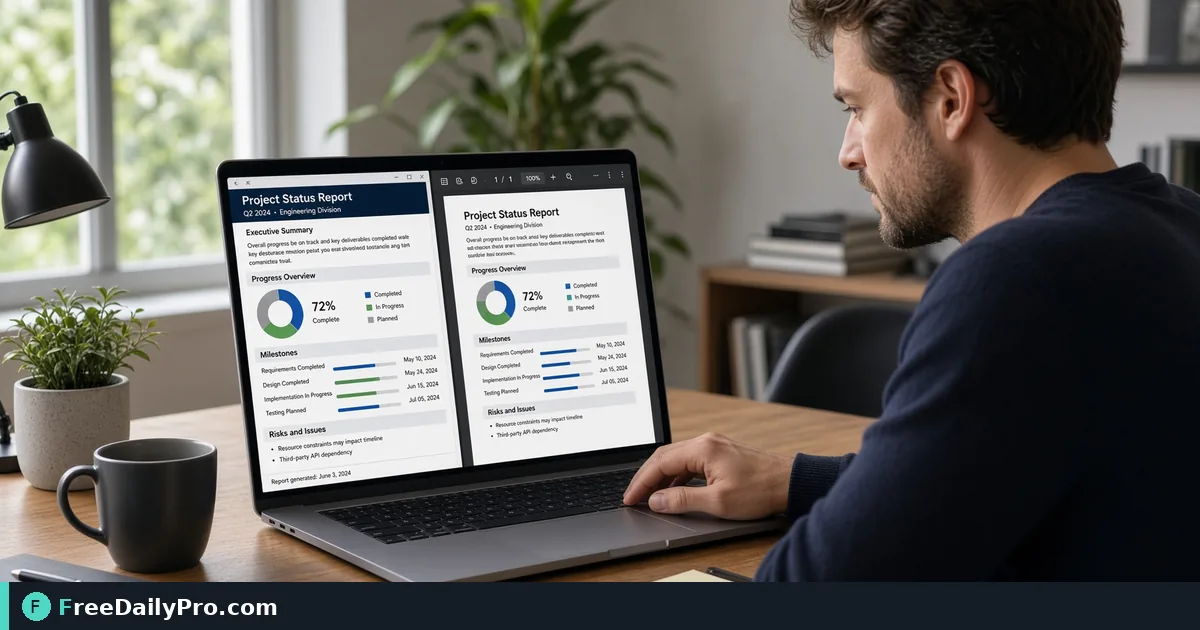
Your reporting script produces a tidy HTML summary, and your client wants it as a PDF they can file. You could open it in a browser and print, but you want control over paper size, margins and where pages break. HTML to PDF takes the markup you paste, or a saved .html file you drop in, and returns a PDF without leaving your browser.
The clip below shows the basic conversion.

What it accepts, and what it does not
The tool renders HTML that you provide. It does not fetch a web address, because most sites block that kind of request from a browser, so typing a URL will not work. For a page that is already open, your browser's own print dialog with Save as PDF is the right choice. This converter is for code you are generating, a snippet from another system, or a file saved to disk.
Inline styles and style blocks are rendered, so colours, fonts, borders and layout carry through. Scripts are not run, which means a chart drawn by JavaScript will be missing unless it has been exported as an image or inline SVG first. The file you paste or drop is read locally and never uploaded, although any image or stylesheet your HTML links to is still fetched from its own site, as it would be in any browser.
Setting up a worked example
Say you have a quarterly sales summary: a heading, two short paragraphs, a nine-column table of regional figures and a logo. The table is wider than a portrait page.
- Paste the HTML into the box, or drop the .html file onto the drop zone below it. The file's content loads into the box and its name becomes the PDF name.
- Choose the page size: A4, Letter or Legal. A4 is the default.
- Tick Landscape for the wide table. On A4 landscape with the default 15 mm margin, the printable area is 267 by 180 mm.
- Adjust Margin in millimetres, anywhere from 0 to 50. For a dense table 10 mm is plenty. For a document that will be hole-punched, use 25 or more.
- Press Convert to PDF. A progress line shows each page being rendered and asks you to keep the tab open.
- Check the preview that appears, then press the download button. If something is off, press Edit, change the HTML or settings and convert again.
If you realise mid-way that the document is longer than expected, the Stop button cancels the run.
How page breaks are decided
The tool measures your rendered content and cuts it into pages itself. Table rows, images, SVG graphics, list items, paragraphs, headings, code blocks and quotations are treated as whole units, so a row is not sliced in half across two pages. You can also force a new page with the CSS property break-before set to page (or the older page-break-before set to always) on an element, which is how you give each chapter its own page.
If the content is wider than the printable area, such as a table with many columns, the layout is widened and then scaled down to fit. That keeps every column on the page, but very wide tables become small text. Landscape and a tighter margin are better fixes than relying on the scaling.
There is a ceiling of 200 pages per conversion. If you hit it, split the source HTML into parts, convert each, and join them with Merge PDF.
Images, fonts and links
Pictures referenced by a web address may not appear if the host blocks cross-origin loading. An image that fails to load is replaced with a blank rather than breaking the whole conversion. The reliable approach is a data URL, where the image bytes are embedded directly in the source, so a logo travels with the document.
The output pages are captured as images with an invisible text layer on top. In practice that means the page looks exactly as rendered, links that start with http, https or mailto stay clickable, and text is selectable and searchable for Western European characters. Words containing characters outside that range are not given a text layer, so do not rely on search for, say, Devanagari or Chinese text. If you work in those scripts, check selectability in your viewer before promising a searchable archive.
Keeping the file size sensible
Because pages are stored as images, a long report can produce a heavier file than a text-based PDF. Test with the real document and look at the size before emailing it. If it is too large, run it through Compress PDF and zoom in to confirm small table text is still readable. A cover letter written in a word processor and a body converted here can be joined with Merge PDF, which saves you from rebuilding the cover in HTML.
Common mistakes
- Pasting only a fragment with no styling and expecting the look of your live site. External stylesheets may not load; put the CSS inline or in a style block.
- Forgetting that scripts never run. Export charts as images first.
- Using relative image paths such as a file in the same folder. The tool cannot see your disk from a pasted snippet, so use data URLs.
- Setting a margin of zero and then finding that printers clip the edges. Keep at least 5 mm.
- Leaving the page size on A4 when the recipient prints on Letter. Pick the size they print on, since both are offered.
- Closing the tab while pages render. Long documents take time because each page is captured individually.
Where it fits among related tools
Use this converter when the source is markup. If your starting point is a Word file, a different converter will serve you better, and if you are assembling several parts, the PDF tools category lists the rest of the toolkit. The 10 trial usages a day apply here as on other tools, so review the preview before you download.
One quick habit before you send: open the PDF, search for a word from the last page, and click one link. That tells you in ten seconds whether the text layer and the link layer both survived.
What do you most often turn into HTML before it becomes a PDF, invoices, reports or documentation? Tell us on the contact page.