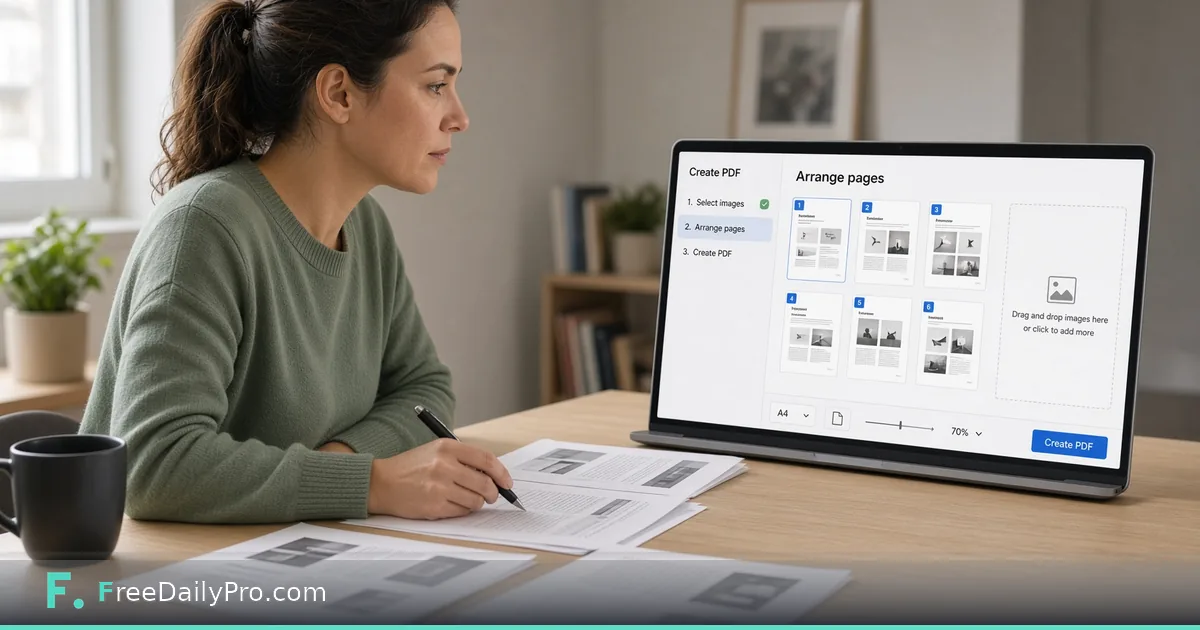
Turn Eight Receipt Photos Into One Clean PDF for an Expense Claim
Combine phone photos of receipts into one ordered PDF, choose Letter or A4, pair two per page, and avoid giant pages.
Finance wants a business trip's receipts as one PDF. You have eight photos in your camera roll, three of them in the iPhone's HEIC format, one taken sideways, and a portal that accepts a single upload. Image to PDF puts them in order on pages of a standard size, and the whole job runs in your browser tab with nothing uploaded.
The clip below shows the basic conversion.

Load, order and rotate
Drop all eight photos at once, or add them in several rounds. The tool accepts JPG, PNG, WebP, GIF, BMP, SVG and HEIC. It converts HEIC for you and uses the orientation the camera stored, so a portrait photo normally arrives upright. A TIFF is refused with a note to convert it first, and an animated GIF contributes only its first frame. If you drop a PDF by mistake, it is skipped and you are pointed to PDF to JPG or Merge PDF.
Each image appears as a thumbnail you can drag into a new position. Sort by date of purchase, since many reviewers match receipts to the trip timeline. Beside every thumbnail is a rotate button that turns that one image 90 degrees at a time; the thumbnail changes immediately, so you can fix the sideways photo before building anything. Adding the same file twice shows a warning but is still allowed, which is how duplicates sneak in. Delete the extra with the remove button.
Page setup that fits receipts
Under Page setup, choose the page size: A4, US Letter, original image size, or a custom size. The tool starts with Letter if your browser language is US or Canadian English or Mexican Spanish, and with A4 otherwise, so check that it matches what your finance team expects. Custom sizes can be entered in inches, millimetres or centimetres, between 1 and 200 inches on each side.
Orientation, margin and image placement are the other choices. Margin is None, Small or Normal, which are 0, 0.25 and 0.5 inch. Fit whole image keeps the entire receipt visible. Fill the page crops the edges to cover the page, which is right for a photo print and wrong for a receipt, because the total or the date may sit at the edge.
On Letter with a Normal margin, the printable area is 7.5 by 10 inches. A 3 by 4 portrait phone photo fits that exactly, so eight receipts make eight full pages, each large and legible.
Pairing two receipts per page
Tick Pair images two per page when a long stack is the problem. Images pair in order, so the first and second share a page, the third and fourth share the next, and an odd one at the end gets its own page. Eight receipts become four pages.
The arrangement matters for readability. On a portrait Letter page with Normal margin and a 3 by 4 photo, either side by side or stacked leaves each receipt about 3.6 by 4.8 inches. Switch the page to landscape with Side by side and each receipt grows to about 4.8 by 6.4 inches, because each column on a landscape page is 4.8 inches wide instead of 3.6. Look at the thumbnail strip afterwards and zoom in on the totals to be sure they are readable.
Pairing is not available when the page size is Original image size, since each image there becomes its own page.
Steps from first photo to download
- Add the eight photos and wait for the "Preparing" message to finish, since HEIC files take longer.
- Drag them into purchase order and rotate the sideways one.
- Choose Letter or A4, portrait, Normal margin, Fit whole image. Tick pairing only if page count matters.
- Press Convert to PDF. A strip of page thumbnails appears, followed by a preview of the PDF.
- Check the strip for crops, sideways pages and missing images, then press Download.
The file is named after the first image and the count of others, such as IMG_4012-and-7-more.pdf. Rename it before sending, for example with the trip and month. Any setting you change after converting clears the old result, so Download never hands you an outdated file.
The Original image size trap
Original image size makes each page exactly as large as its picture. A phone photo of 3024 by 4032 pixels with no resolution stored in it is treated as 96 dpi, which produces a page of roughly 31 by 42 inches. That prints terribly and opens slowly. Setting Resolution to 300 dpi shrinks the same page to about 10 by 13.4 inches. Use this mode for screenshots or scans where the pixel size matters, and use Letter or A4 for receipts.
File size and what to do about it
JPG and PNG files are placed into the PDF as they are, without recompression. That keeps the receipts sharp, but the PDF is roughly the sum of its photos. Eight 3 MB photos give a PDF near 24 MB, which many expense portals reject. Shrink the photos first with Compress Image, or reduce the finished PDF with Compress PDF. The tool does not straighten a crooked photo or remove shadows, so photograph receipts flat on a plain, well-lit surface.
Edge cases
- A mix of PDFs and photos. Convert the photos here, then join the result to the existing PDF with Merge PDF.
- A page that comes out sideways after you leave the tool. Fix it with Rotate PDF, though rotating before conversion is simpler.
- A reviewer who wants to cite "receipt on page 6". Stamp numbers with Add Page Numbers to PDF; the guide on adding page numbers to packets covers placement.
- An image that cannot be read. The summary lists which file was skipped and why, for example "6 of 8 converted. Could not read..." so check the count before you send.
Mistakes that get a claim bounced
Sending photos in camera order rather than date order. Using Fill the page and cropping the total off. Leaving the default Letter or A4 without asking which the finance team expects. Forgetting that the page count in the result line should equal your plan. Skipping the thumbnail strip, which is the one place a wrong crop or missing receipt is obvious.
More options are in the PDF tools category. The download counts toward your daily trial uses.
Which paperwork do you usually photograph, receipts, contracts or forms? Tell us on the contact page.