Online Timer With 10 Minute and Pomodoro Presets, No Signup
A browser timer with one-click 1, 5, 10 and 20 minute presets, a Pomodoro mode and a floating pop-out view. Steps, limits and tips.
You need ten minutes on the clock, and you do not want to install an app or make an account. The Online Timer opens in your browser, so you tap a preset and press Start.
Pick a time
Presets cover 1, 2, 3, 5, 10, 15, 20, 30, 45 and 60 minutes. For anything else, type your own time in the custom box: 7 is seven minutes, 7:30 is seven minutes thirty seconds, and 1:05:00 is an hour and five minutes.
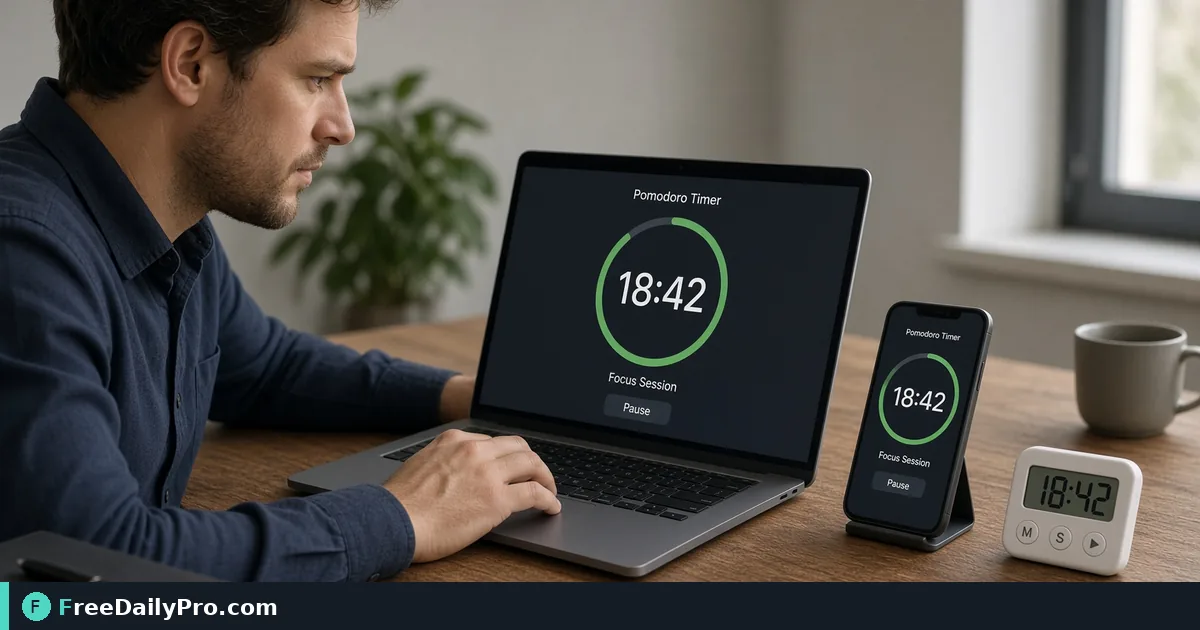
Use Pomodoro for study and work
Pomodoro mode alternates focus rounds with breaks. The defaults are 25 minutes of work, a 5 minute break, and a 15 minute break after four rounds. All four numbers can be changed, and the timer moves to the next round by itself.
Keep it where you can see it
Press Full screen for a large display across a room. In Chrome and Edge, Pop out opens a small floating timer that stays above your other windows. In other browsers, the remaining time also shows in the browser tab title.
Limits to know about
- The timer works from the clock, so it stays correct when the tab is in the background, but it stops if you close the tab.
- Press Start once so your browser allows the end sound.
- It is one timer at a time. For speakers who need amber and red warnings, switch to Stage mode.
Nothing you set is sent anywhere or saved.
Ten ways people use a plain countdown
A timer is a small tool with a lot of uses, and a few of them are worth setting up on purpose rather than by habit.
- Cooking and tea. Pasta, eggs, a steeping teabag. Tap 10 minutes and walk away from the stove with the sound on.
- Meetings that run long. Set 20 or 30 minutes at the start and put the page on a shared screen with Full screen. Everyone sees the same clock.
- Workouts and intervals. Use the 1, 2 and 3 minute presets for rest periods between sets.
- Study blocks. Pomodoro mode gives you a rhythm without thinking about it.
- Reading and writing sprints. Set 15 minutes, write without stopping, and stop when it rings.
- Quick breaks. A 5 minute timer keeps a break from turning into twenty minutes.
- Games and classroom activities. Teachers can show a big countdown while students work on a task.
- Presentations. Rehearse a talk against the clock. For the real event, Stage mode adds amber and red warnings.
- Parking, laundry and other deadlines. Anything with a real deadline that is easy to forget.
- Screen-time limits. Set a time before you open a video or a game, so the end is decided in advance.
How the Pomodoro method works
The idea is simple. You pick one task, work on it for a fixed block, then take a short break. After several blocks you take a longer break. The block is traditionally 25 minutes, but there is nothing sacred about the number. Some people work better with 50 minutes of focus and a 10 minute break, and others need 15 minutes to start at all.
In the Online Timer, switch to Pomodoro and change the four numbers to suit you: focus length, short break, long break, and how many rounds come before the long break. The label above the clock tells you whether you are in a focus round or a break, and which round you are on. If you need to leave a round early, press Skip and the timer jumps to the next step.
A few habits make the method work better:
- Write the one task you will do at the top of a page before you press Start.
- Keep your phone out of reach during a focus round.
- Take the break away from the screen. Stand up, drink water, look at something far away.
- If a block is interrupted, treat it as lost and start a new one rather than counting it.
Why a browser timer is different from a phone timer
Your phone already has a timer. A browser timer is useful in the places where the phone is not: on a work computer where you cannot install anything, on a shared screen in a meeting room, or on a laptop where you want the time next to the document you are working on. Because the time also appears in the tab title, you can glance at the tab bar without switching windows.
The page needs no account, no download and no permissions beyond sound. It keeps nothing, so closing the tab clears it. That makes it suitable for shared and managed computers as well as your own.
Getting reliable sound
Browsers do not let a page play sound until you have interacted with it. Pressing Start counts as that interaction, so the end beep works when you start the timer yourself. If you load the page and never touch it, the browser will keep it silent. Check that the speaker icon next to the buttons shows sound on, and that your computer is not muted. If you run the timer on a phone, keep the screen awake, because some phones pause web pages when the screen locks.
One full Pomodoro cycle with the default settings
With the defaults, the timer runs a repeating cycle you can plan around. It starts with a 25 minute focus round, then a 5 minute break, and repeats that for rounds two and three. Round four ends with the long break of 15 minutes instead of 5, and then the cycle starts again at round one. Counting from the first press of Start, the four focus rounds begin at minutes 0, 30, 60 and 90, the long break begins at minute 115, and the next cycle begins at minute 130. So a cycle is 100 minutes of focus and 30 minutes of rest, which fits a morning of study with room for a drink and a stretch.
When a round ends, the clock beeps three times and the next round starts by itself, so you do not have to press anything. The display changes colour as well: green during focus, blue during a break, and red when time is up. Pressing Skip jumps to the next step but does not start it, so you press Start when you are ready. If you change the four numbers part-way through, the new lengths apply from the next step you load.
Which times the box accepts
The custom box reads a single number as minutes, so 7 is seven minutes and 90 is an hour and a half. Two parts are minutes and seconds, so 7:30 is seven minutes thirty, and 0:45 is forty-five seconds. Three parts are hours, minutes and seconds, so 1:05:00 is an hour and five minutes. A decimal works too: 1.5 is a minute and a half. The longest time allowed is 24 hours, which is exactly 24:00:00, so 25:00:00 is refused. Zero, empty text and anything that is not a number show the message asking for a time between 00:01 and 24 hours, and the Start button will not run until you fix it.
Timer or stage timer?
The Online Timer has three modes that use the same clock logic but are meant for different people. Timer and Pomodoro are for you: a plain countdown, work and break rounds, and a floating window. Stage mode is for a speaker: its colour changes to amber and then red as time runs out, with overtime counting up, an optional message, and a queue of talks taken from your event schedule. If the question is "how long is left in this task", use the Online Timer. If it is "how long does this speaker have", switch to Stage mode; the walk-through is in run a stage countdown or focus work rounds.
Related tools
If you plan your day around blocks of time, an agenda is a natural companion. The Agenda Builder lays out a timed programme you can print, and the timer then keeps each block honest. For counting words while you write in a sprint, the Word Counter shows your total as you type.