Add VAT to a €1,800 Invoice Line and Strip It From a Receipt
Work out VAT both ways for a Dutch freelancer, from net to gross and gross to net, and avoid the common percentage mistake.
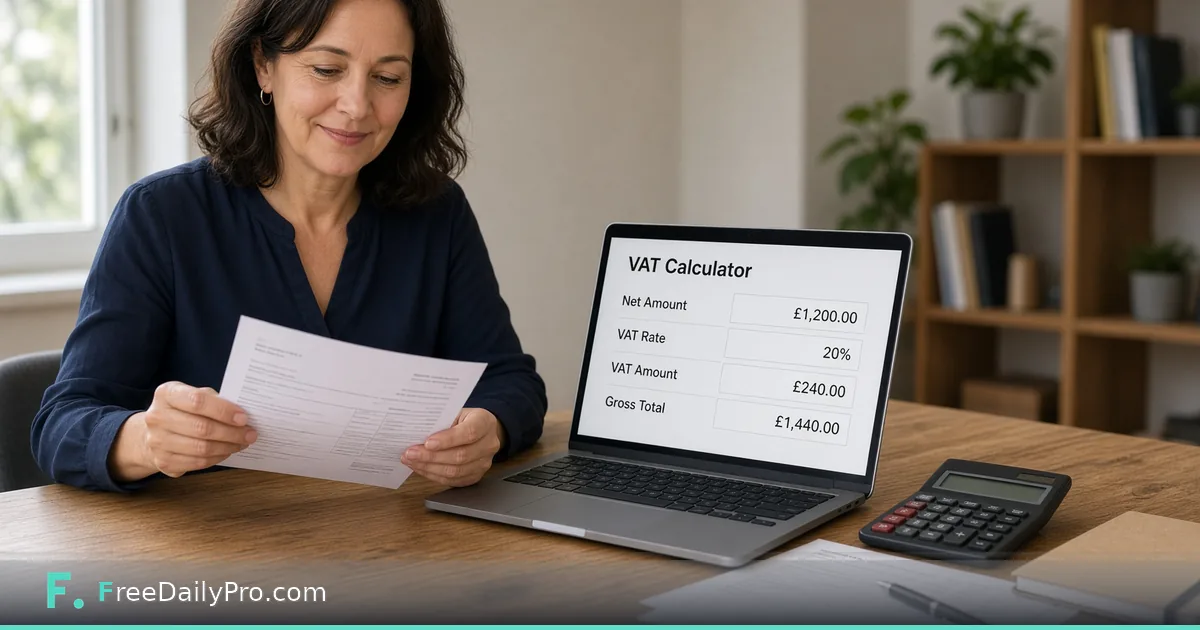
VAT mistakes rarely come from the multiplication. They come from using the wrong direction, taking 21 percent off a total that already includes it, or applying the standard rate to a line that has a reduced one. VAT Calculator has a tab for each direction, loads the standard and reduced rates for a long list of countries, and shows net, tax and gross together.
The clip below shows the calculator in use.

Two tabs, two questions
Add VAT starts from a price without tax, the net amount, and adds the percentage on top. Remove VAT starts from a total that already includes tax, the gross amount, and works out what the net price and the tax portion were. The label above the amount box changes to match, so you cannot forget which one you are in.
You choose a country, and the rate box fills with that country's standard rate; the currency shown follows the country as well. The currency only changes the symbol and formatting. It does not convert money between currencies.
Case one: adding VAT to an invoice line
Suppose a freelance designer in the Netherlands invoices a Dutch client for a €1,800 branding package. Choose Netherlands, which loads 21 percent as the standard rate, leave the tab on Add VAT, and enter 1800. The result: net €1,800.00, VAT €378.00, gross €2,178.00.
For a second line that does qualify for a reduced rate (which goods and services do is for the tax authority to say), the page offers a quick button for the country's reduced rate. For the Netherlands that button is 9 percent. A €250 line at 9 percent produces VAT of €22.50 and a gross of €272.50. The rate buttons are labelled standard and reduced, and the active one is highlighted, which is a useful visual check that you picked the intended rate for the line.
Case two: taking VAT out of a receipt
Now the other direction. A receipt shows a total of €250.00 for a purchase that you know was taxed at 9 percent. Switch to Remove VAT, select 9, and enter 250. The calculator divides by 1.09, giving a net of €229.36 and VAT of €20.64.
The common wrong shortcut is to take 9 percent of 250, which gives €22.50 and overstates the tax. The tax is a share of the net price, not of the total, so you divide by one plus the rate. With 21 percent the same idea shows up neatly: a €121.00 total contains €21.00 of VAT, and net is €100.00.
Steps
- Decide the direction: do you have a price before tax (Add VAT) or a total that includes tax (Remove VAT)?
- Pick the country. Check the rate that loads in the VAT Rate box.
- If the goods or service qualify for a reduced rate, press the reduced rate button or type the rate yourself. Decimals are allowed, for example 5.5.
- Enter the amount. Both decimal points and decimal commas are understood.
- Read net, VAT and gross, and copy them into the invoice or the bookkeeping entry.
- For a different country or a rate that is not in the list, choose Custom / Other or overwrite the rate box.
Rounding across several lines
The calculator works on one amount at a time. For an invoice with several lines, you can either calculate VAT on each line and add them, or add the net lines and calculate VAT once on the total. Because of rounding to cents, the two can differ by a cent or two. Our example shows it: VAT on €1,800 is €378.00 and on €250 at 9 percent is €22.50, a total of €400.50. Check the rule that your tax authority or accountant expects, then use one method consistently.
Limits you should know before relying on the result
The stored rates are a list with an "as of" date shown below the calculator, currently October 2026. Governments change rates, and the right rate depends on what you sell. Treat the list as a starting point and confirm the rate with your tax authority. The tool is also a calculator, not a compliance check. It does not decide whether a sale to a customer in another EU country is taxed in your country or reverse-charged to the customer, whether you must register in another country, or what text an invoice must carry. Those depend on the customer, the type of supply and your registration, so ask an accountant or the tax authority before issuing cross-border invoices.
Canada's entries are different again: they combine federal GST with the provincial tax into one combined rate, and the result label then says "Tax" rather than VAT. For India's multi-part tax structure, use the GST Calculator instead, and for US state and local sales tax use the Sales Tax Calculator.
Neighbouring tools
Once you have the figures, the Invoice Generator can turn them into a document. If a client is billed in another currency, work out the net in your currency, convert it with the Currency Converter, then calculate VAT on the amount you actually invoice. More options are under finance, tax and retirement calculators, and the article on the GST calculator explains the Indian equivalent.
Privacy and trial uses
The numbers are calculated in your browser as you type. Using the calculator counts toward your 10 trial uses for the day, and when the limit is reached the results are replaced by a notice until the allowance resets.
A last check before sending the invoice
Confirm that net plus VAT equals gross on every line. Check that the rate printed on the invoice matches the rate used here. Make sure the currency symbol is the one you are billing in. Keep the calculation next to the invoice in your records.
This is general information, not tax advice. Which invoice situation would you like a worked VAT example for next: mixed rates, a refund, or a quote that must show tax separately? Tell us on the contact page.