Read a Cron Schedule Before It Runs Your Job at the Wrong Hour
Build five-field cron expressions from presets, see them in plain English, preview the next five runs and catch day-of-week mix-ups.
A teammate asks for the weekly stock report to land in inboxes at 9:00 on weekdays. You write 0 9 * * 1-5 from memory, deploy it, and the first email arrives at 10:00 because the server runs on UTC and your team is in London during summer time. Cron Builder would have shown that before the deploy.
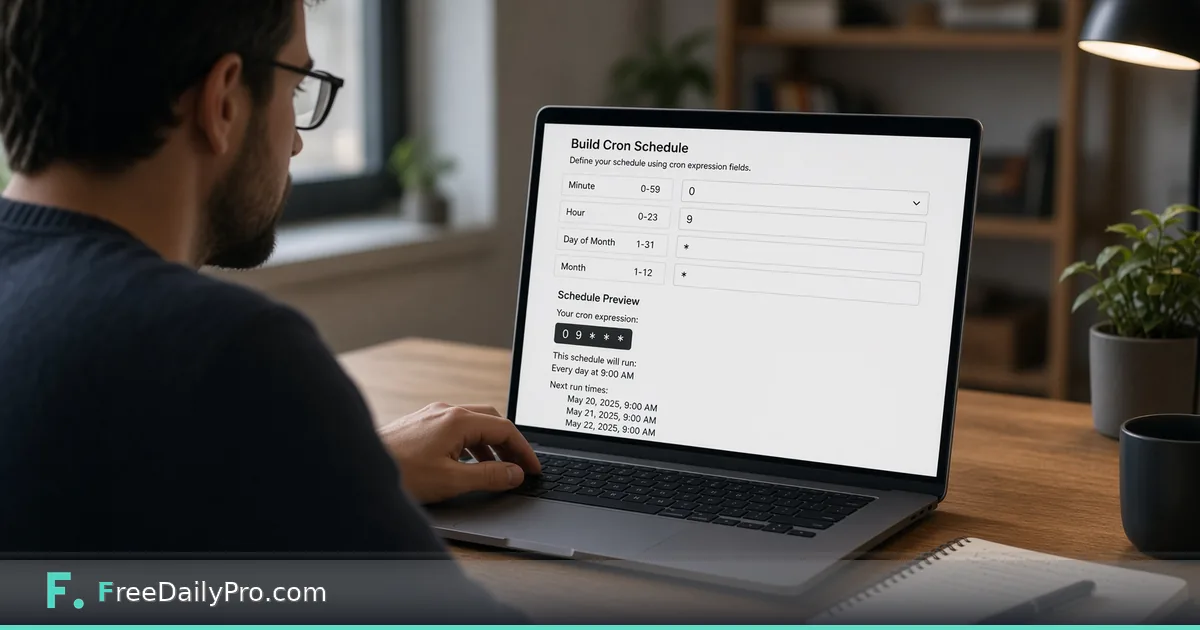
Type an expression, or edit its five boxes, and the tool prints a plain-English description, warnings, and the next five run times in your browser's time zone or in UTC.

The five fields, in order
A standard cron line has five fields separated by spaces: minute (0-59), hour (0-23), day of month (1-31), month (1-12 or JAN-DEC) and day of week (0-7 or SUN-SAT, where both 0 and 7 mean Sunday). A star means "every". A dash is a range, a comma is a list, and a slash is a step.
Cron Builder gives each field its own box with suggestions, such as */15 for minutes or 9-17 for hours, and keeps the full expression in sync at the top. There are also six presets: every minute, every hour, every day at midnight, every Monday at 9am, first day of every month, and every 15 minutes. The tool does not turn a sentence into an expression, so you start from a preset or from the boxes and let the description confirm your intent.
Worked case: the weekday 9:00 report
Type 0 9 * * 1-5. The description reads like "At 09:00, Monday through Friday". The next-runs card lists five dates. If your browser is set to London, they show 09:00 local times.
Now switch the time zone menu to UTC. On a date where London is on summer time, 09:00 UTC is 10:00 London, so if the host runs on UTC and you wanted local time, set the hour to 8 for the summer months or change the scheduler's own zone. The menu offers only your browser's zone and UTC, which is exactly the pair you usually need to compare. For a wider conversion across other cities, use Timezone Converter.
Expressions worth knowing
*/15 9-17 * * 1-5runs every 15 minutes during hours 9 to 17 on weekdays. The last run is at 17:45, not 17:00, because hour 17 lasts until 17:59.0 */2 * * *runs at 00:00, 02:00, up to 22:00. Steps restart each day, so*/5in the hour field is not "every five hours" across midnight boundaries.30 6 1,15 * *runs at 06:30 on the 1st and the 15th, a typical twice-monthly payroll prompt.0 0 1 * *is the first of every month at midnight, one of the presets.0 8 * * 0,6runs at 08:00 on Saturday and Sunday.
Some schedules cannot be written in standard cron. "Every 90 minutes" does not fit, and neither does "the last day of the month" without extra logic in the job. Cron Builder will happily describe a nearby expression, so read the description critically.
Warnings the tool raises
An amber note appears when day of month and day of week are both restricted, as in 0 9 1 * 1. In standard cron that means the 1st of the month or any Monday, not "the first Monday". Many people expect an "and", and the warning is there so you check.
Six or seven field expressions, with seconds or a year, get a warning too, because Quartz and AWS EventBridge use their own rules and differ from Linux cron. Something like 0 0 31 2 * is valid but never fires, and the tool says "This schedule never runs" and shows no run times. Invalid expressions return a short error, such as a hint that five fields are expected.
Steps
- Pick a preset, or type the expression in the large box.
- Adjust any single field in its own box and watch the full expression change.
- Read In plain English and confirm it matches the sentence in your ticket.
- Review the next five run times and switch between your browser zone and UTC.
- Read any amber warning before copying the expression into your scheduler.
- Copy the five fields into crontab, a CI schedule or your job runner. Confirm which time zone that runner uses.
Mistakes to avoid
Writing the hour in local time for a UTC server is the classic one. Daylight saving changes make it worse: a UTC schedule drifts by an hour relative to local time twice a year. A second mistake is * in the minute field when you meant a single minute: * 9 * * * runs 60 times between 09:00 and 09:59. The preview shows five runs one minute apart, which gives it away.
A third is assuming every platform numbers weekdays the same way. Linux cron accepts 0 and 7 for Sunday, other systems differ, so check your scheduler's docs. Finally, a preview is not a test of the job itself. Run the command by hand first, and keep an eye on the first real execution.
Timestamps and what comes next
When a job log shows a Unix time such as 1760000000, use Timestamp Converter to turn it into a readable date and compare it with the preview. More utilities of this kind sit in the security tools category. Cron Builder runs entirely in your browser, and each use counts toward your 10 trial usages a day.
Which schedules do you get wrong most, time-zone shifts, weekday ranges or monthly jobs? Tell us on the contact page.