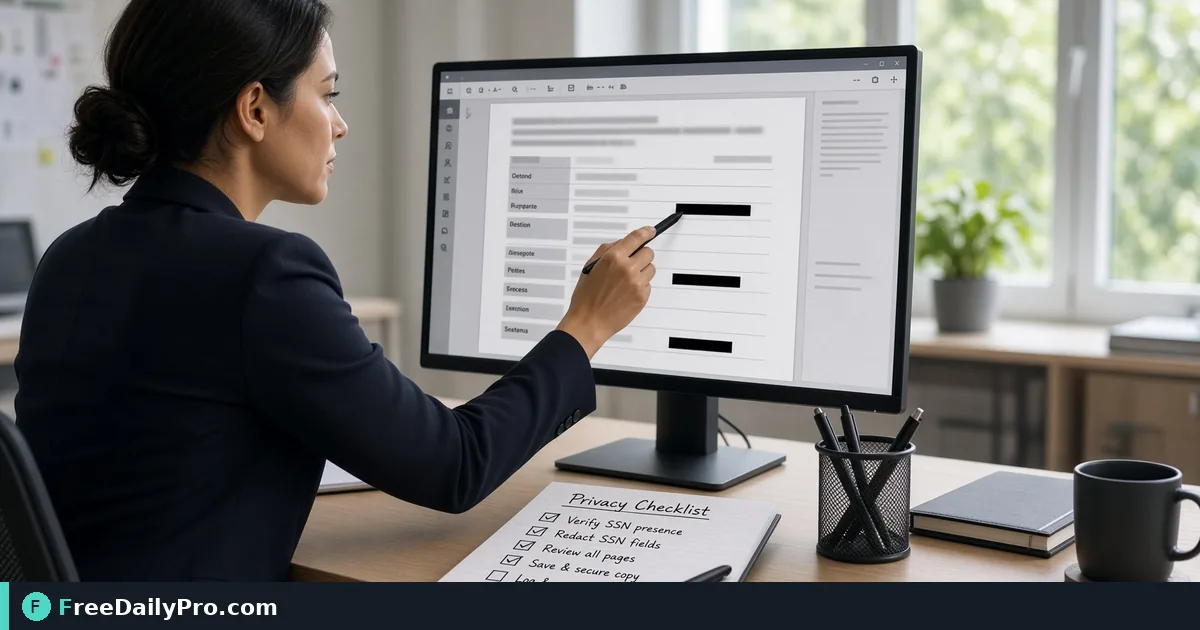
Redact a Grievance File, Then Verify Nothing Survives
Remove names, addresses and contact details from a PDF for good, including comments, links and metadata. A nine-page HR file walked through.
An HR manager has a nine-page grievance file that must go to an outside mediator. The complainant's home address, personal phone and email, a staff ID number and the name of a junior witness all appear on several pages, some of them in places nobody remembers, like a margin comment on page 6. A black rectangle drawn in a PDF editor would look right and still leave every word underneath for anyone who selects the text.
Redact PDF takes a different route. You mark areas, and each marked page is rebuilt as an image, so the original text is gone from the file. The tool runs in your browser, which means the unredacted PDF is not uploaded anywhere.
The clip below shows marking and applying redactions.

Search first, draw second
Drop the PDF and the tool shows a thumbnail for each page. Above them is a box labelled "Text to find and mark", with one name or number per line. For the grievance file, type:
- Jordan Ellis
- EMP-40718
- 48 Marlow Street
Below the box are tick options. Match case and Whole words only narrow the search. Six pattern checkboxes find things by shape rather than text: email addresses, phone numbers, card numbers, SSN-style numbers, EIN-style numbers and "Likely names (review)". Tick Email addresses and Phone numbers for this file, then press Find & Mark.
A message tells you how many matches were marked. The thumbnails with marks get a red border and a count badge in the corner, and the black boxes appear over the thumbnail.
Review every mark
Searching is a first pass, not a verdict. Click a page thumbnail to open it larger and look at each black box. If the search missed something, drag on the page to draw a box by hand; touch drags work on a phone or tablet too. To undo a mark, hover over it and click the small X in its corner. "Back to pages" returns to the grid.
The "Likely names (review)" pattern guesses from titles, labels and common first names, so it will miss some names and flag some words that are not names. Use it to find candidates, not to trust.
The hidden places text can survive
Below the search area, the tool may show an amber panel headed "The text was also found outside the page text". It lists matches inside comments, link addresses, form fields and bookmarks, with the page where each was found. These are the spots people forget: the margin comment on page 6 that says "Jordan to confirm address", for example.
Two tick boxes are on by default. One removes comments, links, form values and bookmarks containing the searched text. The other clears the document metadata: title, author, subject and keywords. Keep both ticked for an external file. Note that every comment-style annotation on pages you did not mark is removed, even if it does not mention the search text.
Applying and checking the result
- Drop the PDF and wait for the page thumbnails.
- Enter the terms and tick any patterns, then press Find & Mark.
- Open pages and check each box; add or remove marks.
- Read the amber panel and keep the two cleanup options ticked.
- Press Apply Redactions. A progress bar runs while pages are rebuilt.
- Read any red warnings under the buttons.
- Look at the preview, then download. The file is named redacted_ plus the original name.
Then test your own work. Open the downloaded file in a viewer and use Find for each term. Try to drag-select text over a blacked-out area. Check the document properties for author and title. If the term is anywhere, go back and mark it, because the original on your device is still intact.
What happens to the pages
Only pages with marks are changed. Those pages are flattened into images, so their text can no longer be selected or searched, which is the trade-off that makes the removal genuine. Pages you did not mark are copied across untouched and stay real, searchable text.
This means a heavily redacted file can be larger than the original, because image pages weigh more than text pages. If it is too big to email, run it through Compress PDF after redacting, then re-check a page for readability.
Scanned pages need a different start
Text search reads the text layer of each page. A scanned page is a picture, so the search cannot see it. If every page is scanned, the tool says so and suggests drawing boxes by hand or running OCR first. OCR PDF makes a scan searchable without changing how it looks, after which Find & Mark can place boxes for you. Review OCR output before you rely on it, because misread characters will hide matches.
Common mistakes
Redacting a copy of a copy is a classic, where someone redacts a PDF exported from a document that already had black boxes added in another tool. Start from the original file.
Trusting the search alone is another. A name written as initials, an ID typed with a space, or a signature image will not match. Scan the pages visually even when the search reports success.
Sending the unflattened original by mistake is the worst. Keep the redacted file in its own folder with "external" in the name and archive the original separately.
Finally, redaction is irreversible in the output but nothing stops you redacting too little. If a reviewer will not see page 8 anyway, remove it with Split PDF instead.
Related reading
For a client-packet version of this routine, see redacting a PDF before sharing it outside the room. Other document tools are grouped in the PDF tools category.
Redact PDF is among FreeDailyPro's 300+ professional tools, premium applications and workflow products and includes 10 trial usages a day. Redaction supports careful handling of personal data, but it does not replace your organisation's own rules about who may see a file.
Which documents do you redact most: HR files, contracts or medical letters? Tell us on the contact page and we will suggest search terms and patterns to start with.