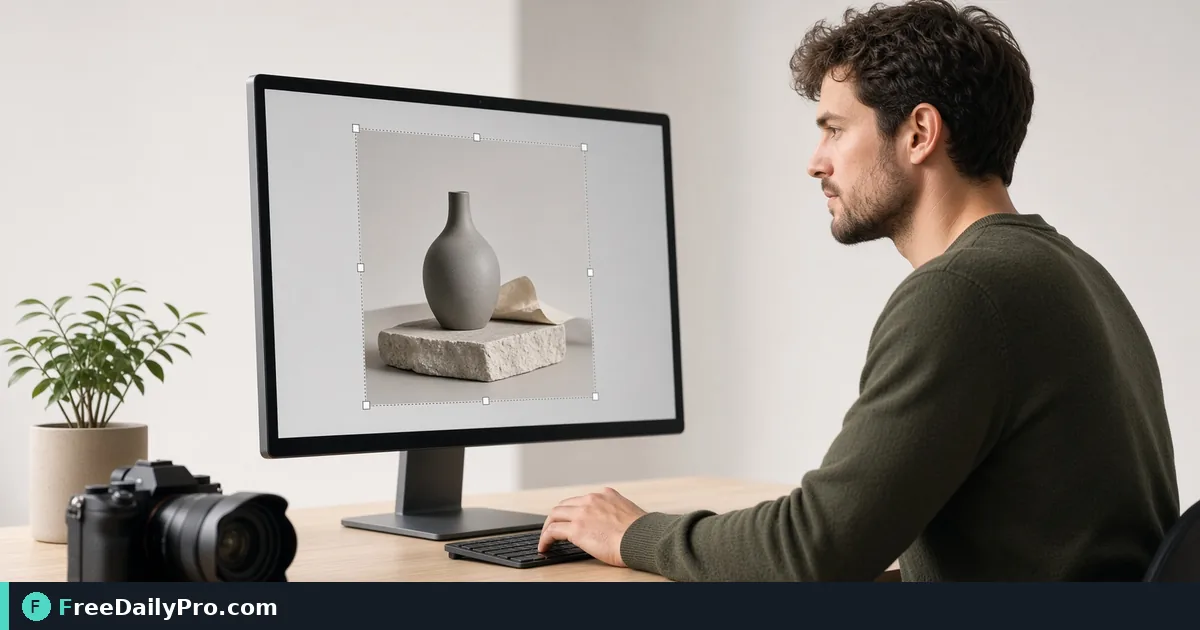
Crop a 4032x3024 Phone Photo to an Exact 1200x1200 Square
Use a 1:1 crop, then scale to 1200 pixels wide, so marketplace product photos hit the size the upload form demands.
The marketplace rejects your upload with "image must be 1200 by 1200 pixels," and the phone photo you took is 4032 by 3024. Squashing it to a square makes the mug look wide; chopping it in a chat app leaves you guessing at pixels. Resize & Crop lets you cut a square exactly where you want it and then scale it to the final size, in one pass, in your browser.
The clip below shows both the resize and the crop modes.
Resize and crop are different jobs
Resize changes how many pixels the whole picture has. Crop throws part of the picture away. A form that asks for an exact square needs both: first decide which part of the photo to keep, then set the final pixel size. Doing it in the wrong order, resizing first with the aspect ratio unlocked, gives you a distorted image that technically meets the size.
The tool has two buttons for this near the top, Resize and Crop, and shows the original size of your file as soon as it opens. HEIC photos from iPhones, AVIF and TIFF files open too. Animated GIFs come out as a single still PNG.
Worked example: 4032 by 3024 down to 1200 by 1200
Open the photo and switch to Crop. Click the 1:1 preset. The tool draws the largest centred square that fits, which for this photo is 3024 by 3024 pixels, starting 504 pixels in from the left edge. If the mug sits left of centre, drag the box across or type a new X value in the numbers under the presets; the box is kept inside the picture automatically.
Below those numbers is a field labelled "Then scale to width (px, optional)." Type 1200. When you press Apply Crop, the square is shrunk to 1200 by 1200, and the page confirms it with a message saying how big the result is. The download name starts with cropped_ followed by your file name, and the file keeps the original format, so a JPG stays a JPG.
Steps in the order you will see them
- Drop the photo. Check the original size line, for example 4032 x 3024px.
- Press Crop. Pick an aspect preset: freeform, 1:1, 16:9, 4:3, 3:2, 3:4, 2:3, 4:5 or 9:16.
- Adjust the box by dragging it, pulling a corner handle, or typing X, Y, width and height in original pixels. Touch screens work too.
- Fill in the width to scale to, if the form wants a specific size.
- Press Apply Crop and look at the result preview, which is generated from the same file you will download.
- Download the image. A trial use is counted at the download.
When you only need to resize
Switch to Resize when nothing needs to be cut. With "Maintain aspect ratio" on, typing a width fills in the height, so a 4032 by 3024 file at 1600 wide becomes 1600 by 1200. You can also set the width as a percent of the original, or in centimetres or inches with a DPI value for print: 10 cm at 300 dpi is 1181 pixels. A live preview shows the result at the size you typed.
Turn the lock off only when you want independent width and height, and accept that the picture will stretch or squash. The tool warns when you enlarge a picture past twice its original width, because it will look soft; it cannot create detail that was never captured.
Limits worth knowing
A side can be at most 16,384 pixels and the whole picture at most 100 million pixels, which comfortably covers phone photos. Above 16 megapixels the tool warns that very large results may fail on phones. If you enter a number that is not a whole pixel count, or is blank, an error appears under the field and the button stays off.
Every output is saved again in the picture's original format, and the scaling step resamples pixels, so each extra pass costs a little sharpness. Plan the final dimensions first, then crop and scale once instead of cropping, resizing and cropping again.
Mistakes with product shots
- Cropping so tightly that the product touches the edge. Marketplaces often add their own border or zoom, so leave an even margin.
- Picking the largest centred square without checking the preview. If your product sits near a corner, the centred box can slice it.
- Resizing to 1200 wide with the aspect lock on and then discovering the height is 900. A non-square photo cannot become a square by resizing alone; crop first.
- Uploading a very large file because the dimensions are right. A 1200 by 1200 JPG is usually fine, but run it through Compress Image if the form has a size limit in kilobytes.
- Forgetting the background. If the listing rules want pure white, take the product off a cluttered table with Remove Background before the crop.
Many photos, one rule
If you have forty product photos that all need the same treatment, a one-at-a-time crop is slow. Convert Image is the better fit for batch resizing, and there is a guide to bulk image batch processing. Use Resize & Crop for the hero shot where the framing matters, and batch the rest. More tools for pictures sit in the image tools category.
Before you upload, open the result at 100 percent and look at the edges and the product label. If text on the packaging is no longer readable at 1200 pixels, the photo needs to be shot closer rather than processed harder.
What size rule trips you up most often: marketplace squares, social banners, or print dimensions? Tell us on the contact page.