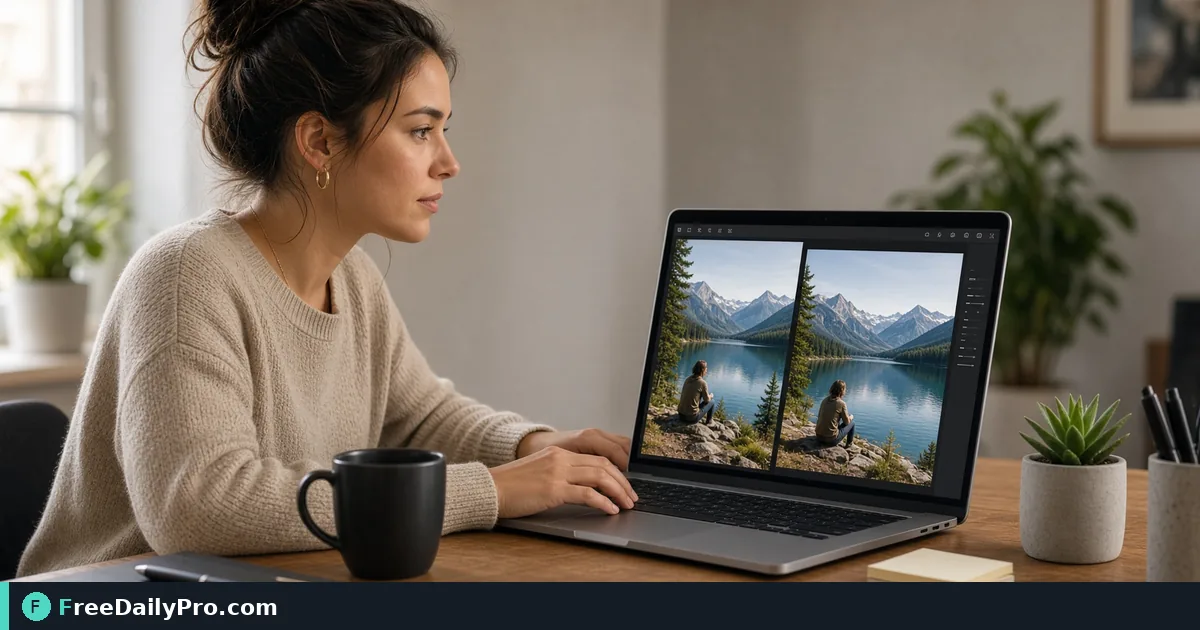
One Photo, Fourteen Crops: Social Sizes Without Losing the Subject
Resize one 3000x2000 product photo into Instagram, LinkedIn, X and Pinterest sizes and fix badly cropped versions one by one.
A launch photo looks perfect on your monitor, then the square Instagram version cuts off the mug on the right and the wide X header shows only a blurred tabletop. The cause is simple geometry: every platform wants a different shape, and a single export cannot fit them all. Social Media Formatter makes all the crops from one upload and lets you choose which part of the picture survives.
Quick answer: drop in one image, pick a focus point, tick the platform sizes you need, press Generate, then fix any crop that went wrong with Edit crop. Download the PNGs one by one or as a single ZIP. The resizing happens in your browser, on your device.
The clip below shows several platform sizes being generated from one picture.
What "crop to fill" actually does to your photo
The tool scales the image until it covers the target rectangle, then trims whatever sticks out. It never adds bars and never squashes the picture. How much disappears depends on how far the source shape is from the target shape.
Take a 3000 x 2000 product photo (3:2) and look at what each preset keeps:
| Preset | Output size | Share of the photo kept |
|---|---|---|
| Instagram Post | 1080 x 1080 | 67% of the width, full height |
| Instagram Portrait (4:5) | 1080 x 1350 | 53% of the width |
| Instagram Story / Reel | 1080 x 1920 | 37.5% of the width |
| Pinterest Pin | 1000 x 1500 | 44% of the width |
| LinkedIn Post | 1200 x 627 | full width, 78% of the height |
| X (Twitter) Header | 1500 x 500 | full width, 50% of the height |
So a landscape photo turned into a story loses almost two thirds of its width, while the same photo as an X header loses half its height. Those are the two cases where subjects most often get chopped. The numbers are plain arithmetic, so you can run them for your own image: divide the target width by the scaled width to see what fraction remains.
Step by step in the tool
- Drop an image onto the upload area. Any image type your browser can open is accepted.
- Choose the crop focus point, a three-by-three grid of arrows. The centre dot is the default. If your subject sits on the right third, choose the right arrow; this keeps the right edge and trims from the left.
- Under "Choose sizes to generate", all 14 presets start selected, from Instagram Post (1080 x 1080) to the YouTube Channel Banner (2560 x 1440). Click a card to deselect it. The button label counts what remains, for example "Generate 5 Sizes".
- Press Generate. A grid of previews appears.
- Check each preview. Where one crop is wrong, press Edit crop under that preview and pick another arrow. Only that size is rebuilt; the rest stay as they were.
- Download single files with the Download link, or press "Download All as ZIP". The archive is named social-media-assets.zip, and each file is named by its preset, such as ig-story.png or li-post.png.
A worked pass: a mug launch
Say a small ceramics shop has a 3000 x 2000 photo with the mug standing at the right third of the frame. The owner needs a feed post, a story, a LinkedIn announcement, a Pinterest pin and an X header.
With the centre focus, the square post shows the mug half cut at its right edge, because the middle 67 percent of the width starts 500 pixels in from each side of the original. Switching the global focus to the right arrow keeps the right side, and the mug is whole in the post, the story and the pin. Those three narrow crops are the ones that care about horizontal position.
The LinkedIn and X sizes are different: they keep the full width, so the horizontal arrow does nothing for them. What changes is vertical position. For the X header, the owner clicks Edit crop and picks the bottom arrow so the mug base and its shadow stay in the 500-pixel band, rather than the empty ceiling above it. One global choice rarely suits every size, and that is why the per-size editor exists.
Mistakes that cost you quality
- Starting from a small file. The tool does not warn you, and a 1080 x 1080 source expanded to a 1080 x 1920 story is enlarged by roughly 1.8 times, which looks soft. Begin with the largest original you have.
- Putting text inside the photo. A cropped-away caption cannot be recovered. Add text after cropping, using only the safe middle of each result.
- Ignoring banners. Wide presets such as the Facebook Cover (851 x 315) and LinkedIn Banner (1584 x 396) keep only a thin strip. The tool shows no safe zones, so keep faces and logos near the middle band and test on the platform.
- Generating everything by habit. Fourteen files you never use are clutter. Select the five you will post.
- Forgetting the format. Output is always PNG, which suits graphics but can be large for photos; run a heavy one through Compress Image before uploading.
Which tool when
For a single custom size or a precise manual crop box, Resize and Crop gives you finer control. If you are building a branded graphic from scratch, pick the colours first with the Color Converter, and read our guide to tools for marketers for the wider workflow. Other image utilities sit in the design tools category. Platforms change their recommended dimensions from time to time, so treat the presets as a sound starting point and confirm against the current platform guidance before a big campaign. Each run counts towards your 10 trial usages a day.
Your first run
Pick the photo you posted last, upload it, select only the three sizes you will really use, and compare the centre focus with the best arrow. A two-minute test shows how much of your subject was at risk.
Which platform's crop gives you the most trouble, stories or banners? Tell us on the contact page.