Turn a Flat PDF Into a Fillable Form With Checkboxes and Dropdowns
Use Create Fillable PDF to add standard form fields to any PDF or blank page in your browser.
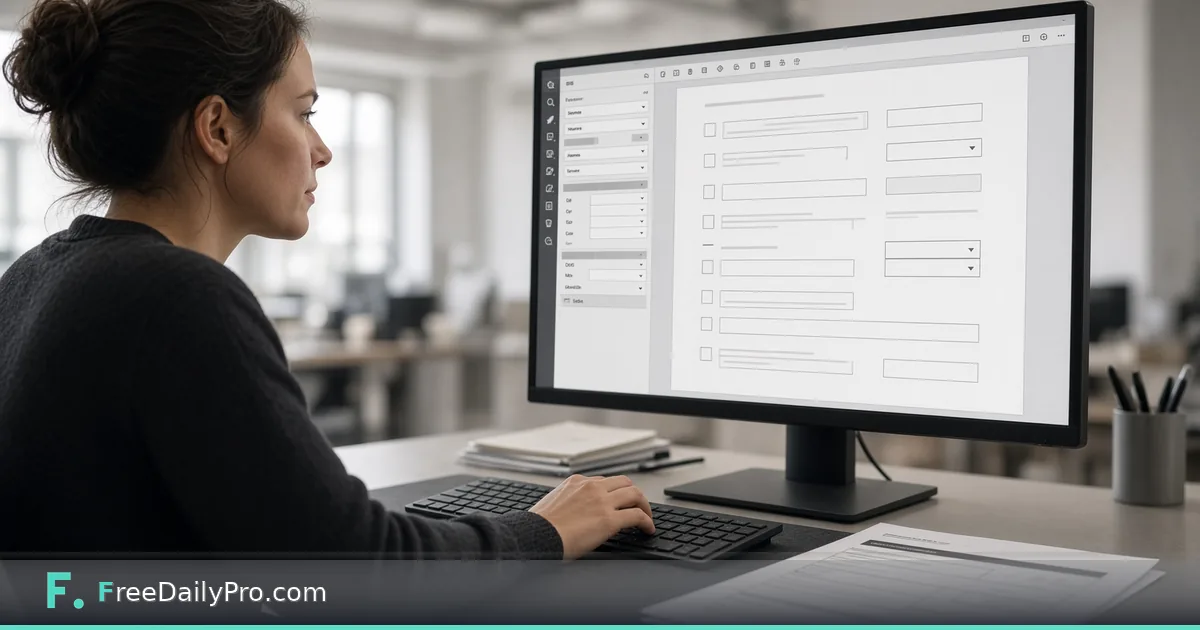
Keisha Brown runs intake for a 40-person property management office in Charlotte, North Carolina. Paper applications still arrive as flat PDFs that staff print, fill by hand, and scan back. Create Fillable PDF is the Premium application that adds real fillable fields (text boxes, multi-line boxes, checkboxes, dropdowns, radio choices and signature areas) to any PDF or a blank Letter/A4 page, entirely in the browser.
This guide covers one job only: convert one flat intake PDF into a typed form others can complete on screen.
Real fields, not drawn fake boxes
Live product facts:
- Fields are standard PDF form fields. The result can be filled in Acrobat Reader, many browser viewers, phones, or Fillable Forms on FreeDailyPro.
- Open an existing PDF (pages kept) or start blank.
- Name each field clearly, the name is what appears in exported field data. Names must be unique, except radios that share a name as one group.
- A signature area is a drawn “Sign here” box so the signer knows where to sign; place the actual signature with Sign PDF (the tool can hand off).
- Does not auto-detect fields from a scan; placement is manual. Only the first 30 pages of a longer PDF are shown for placing fields; the rest are kept as they are. Not cryptographic digital signatures or password protection.
- PDF is opened and changed in the browser and erased when you close the tab.
Related: fill an already-fielded form in Fillable Forms; flatten when you need a non-editable snapshot with Flatten PDF.
Category: pdf tools.
Worked example: tenant application v3
- Builder: Keisha Brown
- Source: flat PDF with printed labels for name, phone, unit, pets, and signature line
- Fields: full_name (text), phone (text), unit_id (dropdown of building codes), pets (checkbox), notes (multi-line), signature area at bottom
- Test: download, open in Fillable Forms, complete once, confirm data names match her export expectations
She stores the blank fillable master as Tenant-App-v3-BLANK.pdf and never lets staff overwrite it with a filled copy.
Steps
- Open Create Fillable PDF. Premium access: 2 trial uses a day; then $3 day pass or $9.99 a month.
- Drop the flat PDF or start a blank form (Letter or A4).
- Choose a field type, then tap/click where it should go.
- Tap a field to rename it, resize it, set dropdown choices, mark required, or adjust radios.
- Keep printed labels in the PDF art or use the printed-label option; keep field names short and unique.
- Download the fillable PDF. Test-fill once before sending to applicants.
- For signing, use the signature area plus Sign PDF as directed by the tool flow.
Naming fields so exports make sense
Keisha bans spaces in field names (full_name not Full Name). Dropdown values match the property codes finance already uses. Radio groups for “yes/no pets” share one name so only one choice sticks.
She keeps a one-row spreadsheet of field names next to the form version number. When a developer later pulls field data, the names still match last year’s export.
Common mistakes
- Drawing lines that only look like fields but are not form fields.
- Duplicate field names on unrelated inputs.
- Expecting OCR to invent fields from a photo of a paper form.
- Sending the form without a test fill.
- Using PDF Editor text boxes instead of real fields when applicants must type answers.
- Making checkboxes smaller than a finger can tap on a phone.
Limits and good to know
- Premium: 2 trial uses a day; $3 day pass or $9.99 a month.
- Text fields use standard Helvetica; characters outside Western European alphabets may not render as expected.
- Signature area is a guide box, not a cryptography cert.
- FreeDailyPro has 300+ professional tools, premium applications and workflow products.
- Existing fillable-forms post is about filling; this post is about creating fields.
Intake rollout Keisha uses
Week 1: convert the application only. Week 2: add the move-in checklist as a second form. She never combines both into one 20-page monster until staff ask for it. Each form version ships with a short staff note: “type on screen, do not print unless the applicant has no device.”
Accessibility habit
She makes text fields slightly taller than the printed line and tests on a phone PDF viewer once. Tiny fields fail on mobile and create support tickets. Dropdown lists stay short (under a dozen building codes) so phones do not scroll forever.
Scenario: HR offer packet
HR asks for an offer acknowledgment that can be typed and signed at home. Keisha builds: candidate_name, start_date, role_title (dropdown), accept_terms (checkbox), signature area. She flattens a filled sample for the shared drive so managers see the final look, while the blank fillable file stays the one emailed to candidates.
Scenario: vendor W-9 style intake (not tax advice)
A local vendor form needs typed EIN and address fields. Keisha places text fields on the printed layout, tests fill, and reminds staff that legal tax forms still need their own compliance review. Create Fillable PDF places fields; it does not certify a form for a tax authority.
After fill: flatten or keep live fields
For archive copies that should not change, she flattens with Flatten PDF when the workflow needs a frozen snapshot. For the copy the applicant still needs to edit, she keeps fields live. Two files, two names.
FAQ
Are the fields real AcroForm-style fields? Yes. They are standard fillable PDF form fields for common readers and Fillable Forms.
Can I add fields to a PDF that already has some? Yes. New fields are added alongside; watch for name clashes.
Is the PDF uploaded? No. It is changed in the browser and cleared when the tab closes.
Does the tool detect fields from a scan automatically? No. You place each field. Plan ten quiet minutes for a one-page form.
How do applicants sign? Use the signature area as a visual guide, then Sign PDF (or the handoff the tool offers) for the actual signature graphic.
What if staff still print everything? Ship the fillable file and a one-page “type here” screenshot. Culture change takes longer than field placement.
Closing next step
Paper loops end when the file itself accepts typing. Open Create Fillable PDF, field one real intake page, and complete a test fill before you e-mail applicants.
If you want a field-naming cheatsheet for property codes next, contact https://www.freedailypro.com/contact.