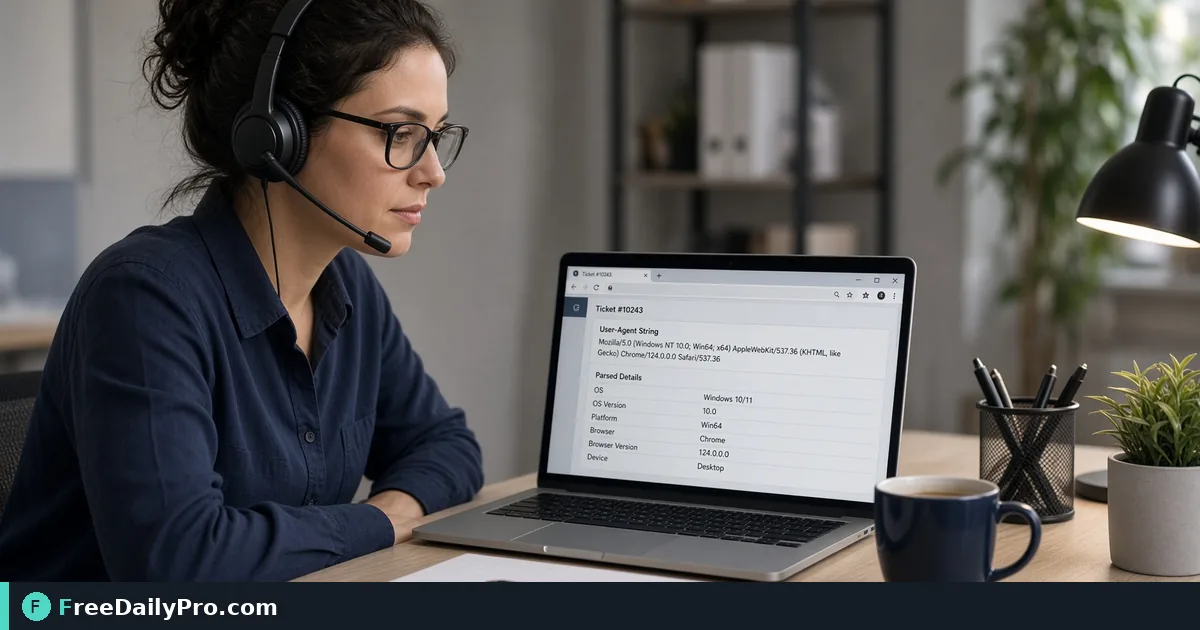
Decode a User-Agent String From a Bug Report
Turn a cryptic user-agent line from a support ticket or server log into browser, OS, device and bot facts, and learn what it cannot prove.
A ticket says "the checkout button does nothing" and attaches one line from your logs: Mozilla/5.0 (iPhone; CPU iPhone OS 17_4 like Mac OS X) AppleWebKit/605.1.15 (KHTML, like Gecko) Version/17.4 Mobile/15E148 Safari/604.1. Every browser string begins with Mozilla for historical reasons, which makes them hard to read at a glance. User Agent Parser splits that line into browser, version, operating system, device and engine, so you know which browser to reproduce the bug in.
It runs in your browser: the text you paste is read locally and is not sent anywhere to be decoded.

Decoding the ticket example
Paste the iPhone line above. The tool reports Mobile Safari 17.4 as the browser, iOS 17.4 as the system, Mobile as the device type, Apple iPhone as the device and WebKit as the engine. Bot is No. That tells you two things at once: the customer is on Safari, not Chrome, and every browser on an iPhone uses WebKit underneath, so a bug that only shows there is likely a WebKit behaviour rather than a Chrome one.
Compare it with a second ticket from a Pixel: Mozilla/5.0 (Linux; Android 13; Pixel 7) AppleWebKit/537.36 (KHTML, like Gecko) Chrome/124.0.6367.82 Mobile Safari/537.36. The tool says Chrome 124.0.6367.82, Android 13, Mobile, Google Pixel 7, Blink. Two reports, two different engines, which is why "works on my laptop" tells you so little.
Steps in the tool
- Open the page. The box is pre-filled with your own browser's string, so you immediately see a working example.
- Clear it and paste the string from the ticket, the access log or your analytics export. Use the button labelled "Use My Browser's User-Agent" to bring yours back at any time.
- Read the eight cards: Browser, Version, OS, Device type, Device, Engine, CPU and Bot or script.
- If the OS card says Windows, read the small note underneath. Windows 10 and Windows 11 send the same string, so they cannot be told apart.
- Copy the values into the ticket so the next person does not decode the line again.
Reading the results with care
Some outputs look surprising until you know why. A desktop Safari or Chrome on any recent Mac reports Mac OS 10.15.7, because browsers froze that number to limit fingerprinting, so you cannot infer the real macOS release. An Edge string on Windows 10 or 11 shows Windows 10 with the Edge name and a Chromium engine, called Blink. A Firefox line from Linux gives Gecko and often an amd64 CPU, but an empty OS version.
Device type says Desktop whenever the parser finds no mobile, tablet or other category. That means nothing was detected, not that a desktop was positively identified. The Device card is filled in only when the string includes a vendor and model, as with the iPhone and Pixel above.
Bots and scripts
The Bot or script card says Yes when the string contains words such as bot, crawler, spider or slurp, or matches facebookexternalhit, curl/, wget/, python-requests or headlesschrome. Pasting Mozilla/5.0 (compatible; Googlebot/2.1; +http://www.google.com/bot.html), python-requests/2.31.0 or curl/8.4.0 each gives Yes, with browser, OS and engine shown as Unknown, which is correct since they are not browsers.
A crawler that disguises itself as a normal browser will show No. If a spike of errors in your logs looks automated, the parser is a first filter, not proof. Pair it with the response codes in the HTTP Status Reference, such as a run of 403 or 429 responses, and with request rates from your server.
Pulling strings out of logs first
Server logs carry the user-agent in a quoted field at the end of each line. If you have a big file, test a pattern in the Regex Tester to extract just that field, for example everything inside the last pair of double quotes, then paste the unique values into the parser one at a time. The parser reads one string at a time, so for a report of top browsers, decode the five or six most frequent strings rather than all of them.
For incident work, note the browser and version, OS version and device type next to the error time, then check whether failures cluster in one engine. A cluster in WebKit with no errors in Blink is a strong clue, even before you read a stack trace.
What it cannot tell you
The string is self-reported. Dev tools, extensions and some privacy browsers let a person change it, so treat the result as a hint for debugging and analytics and never as a security control. The tool reads the classic User-Agent header text only. Values from Client Hints headers such as Sec-CH-UA use a different format and will not parse meaningfully.
It also does not say what screen size, zoom level, language or extensions the user had. If a layout bug needs those, ask the user for a screenshot, since the string gives only identity.
Common mistakes
- Concluding "Chrome bug" from the word Chrome inside a Safari or Edge string. Read the Browser and Engine cards, not the raw text.
- Trusting the macOS or Windows version when the browser deliberately reports a frozen value.
- Treating Desktop as proof of a desktop machine when the label is only a fallback.
- Pasting a whole log line instead of the quoted user-agent field, which can confuse the match.
- Dismissing a Bot of No as a clean bill of health.
Closing next step
Take the last three tickets that said "it doesn't work on my phone" and decode each string. If two share the same engine, reproduce the problem in that browser first. Start at User Agent Parser and keep the results with the ticket. More developer utilities live in the security tools category, among the 300+ professional tools, premium applications and workflow products on the site.
Which part of triage would you like decoded next: Client Hints headers, log files or crawler traffic? Tell us on the contact page.