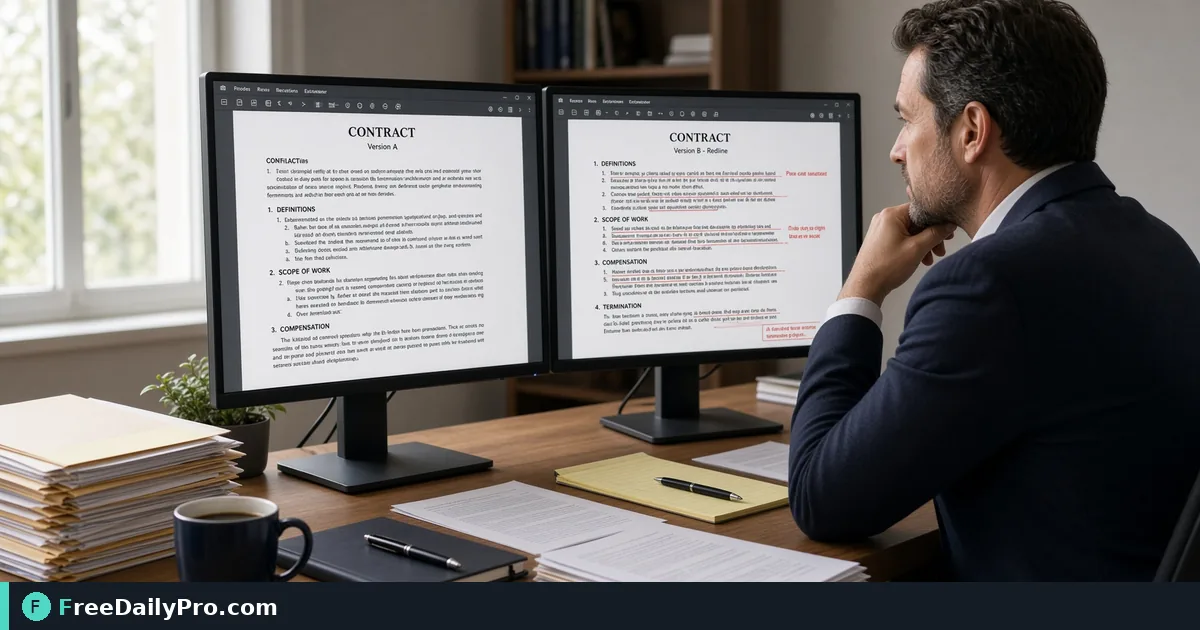
Prove Only One Clause Changed Between Two Contract PDFs
Compare two PDF versions by their real text, see every added or removed word, and export a report before you sign or send.
Your counterparty says the only edit in version 4 of the services agreement is clause 12. You have a 14-page v3 you already approved, a 14-page v4, and no appetite for reading both line by line at 6 p.m. Compare PDF does the reading for you and marks the exact words that differ.
Upload the original and the revised file, press Compare PDFs, and the tool lists every added, removed and edited passage with its page number. It works on the text inside the PDFs, not on how the pages look, and it runs in your browser.
A worked case: the "one clause" revision
Imagine v3 and v4 of a design retainer. The counterparty promises that only the liability cap in clause 12 moved, from "fees paid in the preceding six months" to "fees paid in the preceding twelve months". You load v3 as Original and v4 as Revised.
The summary line reads something like "3 changes". Clause 12 is one of them, as promised, shown with the old words struck through in red and the new words underlined in green. The second is on page 4: "within thirty (30) days" became "within fifteen (15) days" in the payment clause. The third is a new sentence on page 9 allowing the supplier to reassign the agreement. You came in to verify one change and left with two you would otherwise have signed unseen.
That is the real value of a text comparison: it does not trust the cover email. It also works in the other direction. If the tool says "These two files have the same text", you have evidence the revision was formatting only.
Steps in the tool
- Open Compare PDF and drop the older file in the Original box, then the newer one in the Revised box. The order matters, because red means "in the original, gone now" and green means "new in the revised".
- Press Compare PDFs. Larger documents take a few seconds while the text is read page by page.
- Read the counters: total changes, how many added, how many removed, how many edited.
- Use Next change and Previous to jump through each difference. The current one is highlighted and scrolled to the middle of the list.
- Pick a view. Unified interleaves old and new text in one column, which suits a quick scan. Side by Side puts Original and Revised in two columns so you can read each version as a sentence.
- Untick Show unchanged text if you only want the differences, or leave it on to see each change in context.
- Download Report (PDF) for the file you attach to a sign-off ticket, or Report (.txt) for a plain record. Both list every difference with page numbers.
How the tool decides what counts as a change
Lines are joined into paragraphs before comparing, so a paragraph that now wraps onto an extra line is not reported. Inside a paragraph that did change, individual words are marked, which is why a swapped "thirty" and "fifteen" stands out instead of the whole paragraph lighting up.
Things the tool deliberately does not see are just as important. A new font, a recoloured heading, a logo that moved a few millimetres, or a signature image dropped on page 14 produce no difference unless the text changes too. If the visual layout is what you are policing, flip through both files by eye after the text check.
When a PDF has no text layer
A scan of a printed, marked-up contract is a stack of pictures. Compare PDF notices this: if a file looks scanned, it tells you which one and points you to OCR PDF. Run the scan through OCR, download the searchable version, and compare that against the other file.
There is a milder version of the same problem. If only some pages are images, for example a signed page added at the end, the tool lists those pages as having no text and skips them. Read that warning. "No changes" on a packet where five pages were skipped is not the same as "no changes".
OCR is imperfect, so expect a few false differences such as an "l" read as a "1". Check each flagged change against the page itself before you raise it with the other side.
Mistakes that waste the comparison
- Swapping Original and Revised, then explaining to a colleague why the cap "was reduced" when it was increased. Check the file names shown in the two boxes before reading.
- Comparing a PDF printed from Word with one exported by another program. Headers, footers and page numbers may be extracted in a different order and show up as noise. Compare from the same source where you can.
- Treating a clean result as approval. The tool shows that text matches or differs. It does not tell you whether a change is acceptable.
- Ignoring the size limit. If either document has more than 3,000 paragraphs, the comparison is skipped to keep the browser responsive. Split a very large file into sections and compare the sections in pairs.
- Trying a password-protected or corrupted file. The tool reports that it could not compare the PDFs. Remove the password in your PDF reader first.
Neighbouring tools
If you only need two plain pieces of text compared, such as clauses pasted from an email, Diff Checker is the lighter route. Once the comparison shows a figure or name that should not go to the other side, use Redact PDF on the file you are sending. The broader PDF tools category covers the rest of the document chain. For a different angle on the same tool, see the post on spotting document differences.
Keeping a record
The PDF report names both files and lists each difference by page, which makes it a handy attachment on a sign-off ticket or an email that says "I reviewed these changes and accepted them". Save it next to the two versions with the date in the file name, for example retainer-v3-v4-comparison-2026-10-17.pdf. The browser does not keep a copy for you, so download it before you click New Comparison.
Privacy is straightforward here: the comparison runs in your browser and the PDFs are not uploaded to a server. Trial uses apply per day, so a quick dry run on a short pair of files does not need to be wasted on a 90-page agreement.
This is a text comparison to support your own review. It is not legal advice and does not replace reading the clauses that changed.
Which document pair do you compare most often, contracts, proposals or policy updates? Tell us on the contact page.