Pack 12 UI Icons Into One Sprite Sheet and Split It Again
Combine 12 small icon PNGs into a 4-column sheet, work out the CSS offsets, and split sheets back into frames.
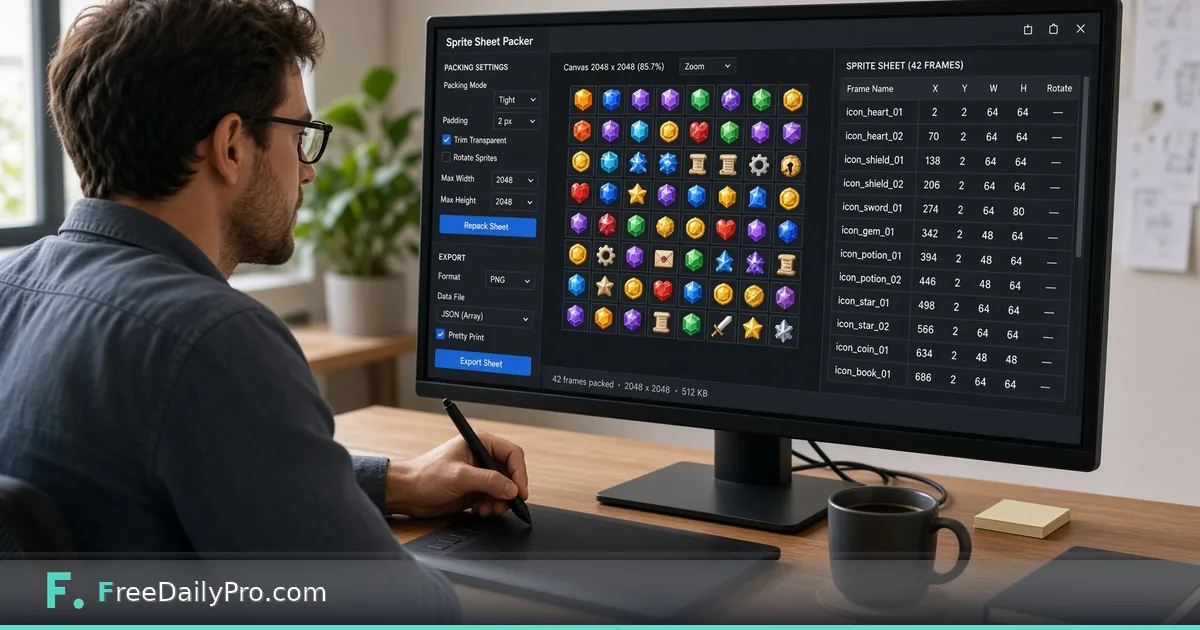
A small game menu with twelve 48-pixel icons can trigger twelve separate image requests, twelve loading flickers, and twelve files to keep in sync. Packing them into one image fixes all three. Sprite Sheet Tool builds that grid from your frames, and it can also cut an existing sheet back into numbered files when you only have the combined version.
Quick answer: choose Combine Frames, drop your images in the order you want, set the number of columns, and press Generate Sprite Sheet. To go the other way, switch to Split Sheet, enter the columns and rows, and download a ZIP of frames. Both run in your browser and output PNG.
The clip below shows combining and splitting a sheet.
The case: a 12-icon toolbar
You have twelve icons exported at 48 x 48 pixels: home, search, bag, heart and so on. Named icon_01.png to icon_12.png, they go into the tool together. With 4 columns the tool computes the rows itself by dividing the frame count by the columns and rounding up, so 12 frames in 4 columns make 3 rows. Each cell is 48 x 48, which makes the sheet 192 x 144 pixels.
If you chose 5 columns instead, 12 frames need 3 rows, and the last row would hold only two icons, leaving three empty cells. The sheet would be 240 x 144. Nothing is wrong with that, but the empty cells are wasted space, which is why a column count that divides your frame count evenly (3, 4 or 6 for twelve frames) is tidier.
Combine mode, step by step
- Name your files with leading zeros: icon_01 through icon_12. The tool places frames in the order your file picker supplies them, and many pickers sort names alphabetically, so icon_10 would otherwise land before icon_2.
- Choose Combine Frames, then drop all frames at once. A line confirms how many were loaded.
- Set Columns. The default is 4. An invalid or empty value falls back to 1.
- Press Generate Sprite Sheet. A message reports the grid, such as "Combined 12 frames into a 4x3 sprite sheet".
- Press Open / Save Sprite Sheet. The PNG opens in a new tab and you save it from the browser's menu.
Frames are laid out left to right, then top to bottom. Frame 1 is the top-left cell, frame 4 the top-right, frame 5 the first cell of row two.
Turning the grid into CSS positions
The tool gives you the image, not the coordinates, but the maths is simple. For a cell size of 48 and 4 columns, the icon at index n (counting from 0) is at column n mod 4 and row n divided by 4, rounded down. Its background position is minus 48 times the column, then minus 48 times the row. Icon 6 (the seventh) is at column 2, row 1, so the offset is -96px -48px. In CSS you would set the element to 48 x 48 pixels, point its background at the sheet, and apply that position. A game engine that wants a frame index uses the same grid: width 48, height 48, 4 columns.
Mixed-size frames
What if one icon is 64 x 48 and the rest are 48 x 48? Every cell takes the width of the widest frame and the height of the tallest, so the cell becomes 64 x 48 and the 4-column sheet grows to 256 x 144. Smaller frames are centred inside their cells at their original size, with no stretching, and smoothing is switched off so pixel art stays sharp. The side effect is that your CSS offsets must use 64 as the cell width, and the narrower icons now sit 8 pixels in from the cell edge. Keeping every frame the same size avoids all of this, so use Resize and Crop to normalise the odd one out first.
Split mode: recovering frames from a sheet
Say you inherit a 384 x 96 character sheet with sixteen 48-pixel poses in 8 columns and 2 rows, and the original frames are gone.
- Switch to Split Sheet and drop the PNG.
- Type 8 for Columns and 2 for Rows. The tool does not detect the grid, it just divides the image into equal cells.
- Press Split into Frames. Sixteen thumbnails appear.
- Press Download All as ZIP. You receive sprite-frames.zip with frame_01.png through frame_16.png, numbered row by row from the top left.
Check the arithmetic before you start: 384 divided by 8 is 48 and 96 divided by 2 is 48. If a width does not divide evenly, such as 400 pixels into 3 columns, the cell width is a fraction and the edges will not line up with the artwork. If the tiles have a gutter between them, such as 2 pixels, type it in Padding on the split side and the slices line up; outer margins are not handled, so crop them first.
Mistakes to avoid
- Dropping frames in the wrong order. Check the first and last thumbnails in the result before shipping, since the order cannot be changed after the sheet is made.
- Treating the sheet as final art. Edit the frames, then rebuild, instead of painting on the combined image.
- Forgetting transparency. The output is a PNG with transparent areas preserved; if you later convert to a format without alpha, the background turns solid. Use Convert Image deliberately and check the result.
- Shipping a heavy sheet. A sheet of large frames can reach several megabytes; run it through Compress Image and compare on screen.
- Expecting more than a simple atlas. Tick the JSON atlas box to get each frame's x, y, width and height (TexturePacker JSON Hash layout, with optional padding and extruded edges); it does not trim or rotate frames and writes no CSS.
Where this sits with other tools
For many ordinary photos rather than a grid of same-size frames, Convert Image is a better fit, and our walkthrough on turning image sets into loops covers animated output. Browse the animation tools category for the rest. Each combine or split uses part of your 2 trial usages a day, so settle the column count on paper before you press the button.
Before you commit the sheet
Keep a small text note beside the PNG with the cell size, column count and frame order. Six months from now, that note saves you from re-deriving the offsets.
Are you packing icons for a website or frames for an animation? Tell us which on the contact page, and we will write the next walkthrough for it.