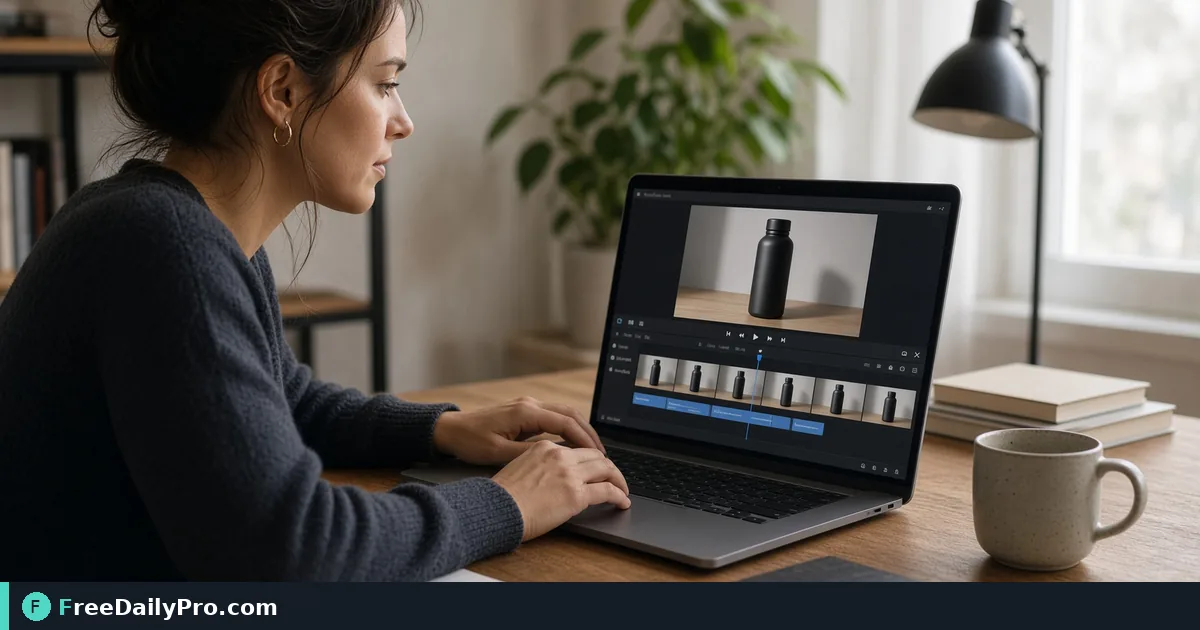
Caption a 3-Minute Product Demo: Burned-In or Switchable?
Write an SRT for a 3-minute demo, choose burned-in or track captions, and fix timing errors before you export.
Your 3-minute product walkthrough is done, the voiceover is clear, and then you remember that most people watch a silent autoplay in a feed or on a train. Without words on screen they scroll past in two seconds. Video Subtitle Adder takes your video plus a subtitle script in SRT format and gives you back an MP4 with the words either drawn into the picture or attached as a track viewers can switch on and off.
Quick answer: upload the video, paste or upload your subtitles, choose size, position and colour, decide between burning in and adding a track, and press Add Subtitles. Processing runs in your browser, so the video is not uploaded to a server. Burning in re-encodes the whole video, so expect it to take a while on a long file.
The clip below shows subtitles being added to a video.

Write the script first: what a valid SRT looks like
The tool reads standard SRT. Each cue has a number, a time range with a comma before the milliseconds, the text, and a blank line before the next cue. For the opening of a demo it might be:
1
00:00:00,000 --> 00:00:03,500
Meet the new dashboard.

2
00:00:03,500 --> 00:00:08,000
Start by choosing a date range at the top.

3
00:00:08,000 --> 00:00:12,500
Every chart below updates as soon as you click.
A 3-minute video runs to 00:03:00,000, so the last cue must end at or before that. Two practical limits keep captions readable: about two lines per cue, and enough time on screen to read them. A line of 40 characters wants roughly 2.5 to 3 seconds, so the 4.5-second cue above is comfortable. Twelve to twenty cues per minute is typical for narration at a normal pace, which means a 3-minute demo needs around 40 to 60 cues.
The tool validates the text before it starts. If a time is missing or malformed, or an end time is not after its start, it names the line number. Typical causes are a full stop where the comma should be (00:00:03.500), a missing blank line between cues, or two cues pasted together.
Step by step
- Drop the video onto the page. A non-video file is rejected with a message, and a size notice appears if the file is large.
- Paste the SRT into the box, or choose Upload an .srt, .vtt or .ass file. WebVTT and ASS or SSA files are converted to plain SRT, and any styling inside an ASS file is dropped; only text and timing are kept.
- Set Size (Small, Medium or Large), Position (Bottom, Middle or Top) and Colour (White or Yellow). Tick Dark box behind text if the footage is busy.
- Decide whether to tick the option that adds a subtitle track instead of burning in. See the next section.
- Press Add Subtitles. A progress bar and a Stop button appear while the video is processed.
- Download the result. It is named subtitled_ followed by your original file name, always as an MP4.
Burned in or a track: choose by where the video will live
Burned-in captions become pixels. They show everywhere, including silent autoplay, a conference screen and a messaging app that ignores caption tracks. The price is that they cannot be turned off or edited, the video is re-encoded in full, and all the style choices apply.
A subtitle track is stored beside the picture. It takes seconds, does not recompress the video, and viewers switch it on from the CC or Subtitles menu in their player. The catch is that the style options do not apply, and some players and social feeds ignore tracks entirely. It also needs the video and audio to fit an MP4 without re-encoding. If yours do not, as with some WebM files, the tool shows a notice and falls back to burning the words in.
For a landing page where you control the player, a track is neat. For a feed post or a clip emailed to a client, burn in. Keep the SRT file safe either way, because it is the only editable copy of your words.
Languages and scripts
Latin text works, as do Hindi, Tamil, Telugu, Bengali, Gujarati, Kannada, Malayalam, Punjabi, Arabic, Hebrew, Thai and other scripts. Chinese, Japanese and Korean are rejected with a message because their fonts are too large to include. If your audience reads one of those, add captions in your usual editor instead.
Mistakes and how to spot them
- Drift. If cue 30 appears two seconds late, the times were written against a different cut. Trim first with Trim Video, then write the SRT against that final cut.
- Text covering the interface. A bottom caption can sit on top of a toolbar in a screen recording. Switch Position to Top for those sections, or choose a smaller Size.
- Using the box when you need none. Dark box behind text helps on light backgrounds but looks heavy on a clean demo. Preview a short clip first.
- Phone files that fail immediately. Some .mov files use a codec this tool cannot read; re-export from your phone's share options, or run the file through Convert Video first.
- Uploading an oversized final. After captions are burned in, shrink the file with Compress Video only if you must, then check that the text is still sharp at full screen.
A quick quality pass before sending
Play three moments: the first caption, a quick-talk section in the middle, and the last cue. Confirm that nothing is cut off at the edges and that the spelling of product names matches your site. On a phone-size preview, check that Medium or Large is still readable. If something is wrong, change the SRT and run again; because burning re-encodes, a typo means a fresh export, not a patch.
Related tasks
If the audio itself needs separating for a transcript, Extract Audio gives you a sound file to work from. For a short silent loop of the same demo, the Video to GIF route is lighter. The video tools category lists the rest, and our guide on recording async demos covers capturing the video in the first place. Each export counts against your 2 trial usages a day, so settle the SRT before the first run.
Do you caption mostly screen recordings or talking-head videos? Tell us which on the contact page, and we will write the next guide for that case.