Turn a WebM Screen Capture into an MP4 a Portal Will Accept
Convert WebM, MOV and MP4 in your browser, learn when the tool only re-wraps the file and when it re-encodes, and what size change to expect.
You recorded a walkthrough with a browser-based recorder, uploaded it to a training portal and got "unsupported file type". The file ends in .webm, and the portal only lists MP4. Convert Video changes the container and, when needed, the encoding, without sending the clip anywhere.
Here is the video overview of the page before the details.

Container versus codec, in one minute
A video file has two layers. The container is the wrapper (MP4, MOV, WebM) and the codec is how the picture and sound are compressed inside it. Portals usually check the wrapper, but a wrapper can only hold certain codecs happily. MP4 and MOV normally carry H.264 video with AAC audio. WebM normally carries VP8 or VP9 with Vorbis or Opus.
That matters because the tool takes one of two paths. If your source is already H.264 with AAC (or has no sound) and you ask for MP4 or MOV, it simply moves the streams into the new wrapper. That takes seconds, the quality is identical, and the file size barely changes. Anything else, such as WebM into MP4, has to be re-encoded, which takes longer and changes the size.
What each output choice does
The Output Format menu has four entries. MP4 (widely compatible) is the safe default. MP4 for web is described as the streaming option, but it produces the same kind of file: both are written with the fast-start setting, which places the playback index at the front so a browser can begin playing before the download finishes. MOV is for Apple and QuickTime workflows.
WebM is the odd one out. It is encoded with the older VP8 codec with Vorbis sound, limited to 1280 pixels wide, at a modest video bitrate. It exists for the case where something specifically demands a .webm file, and the tool's own advice is to use MP4 for web pages. WebM also encodes slower in the browser, so try a short clip first if it seems stuck.
Worked case: a six-minute onboarding capture
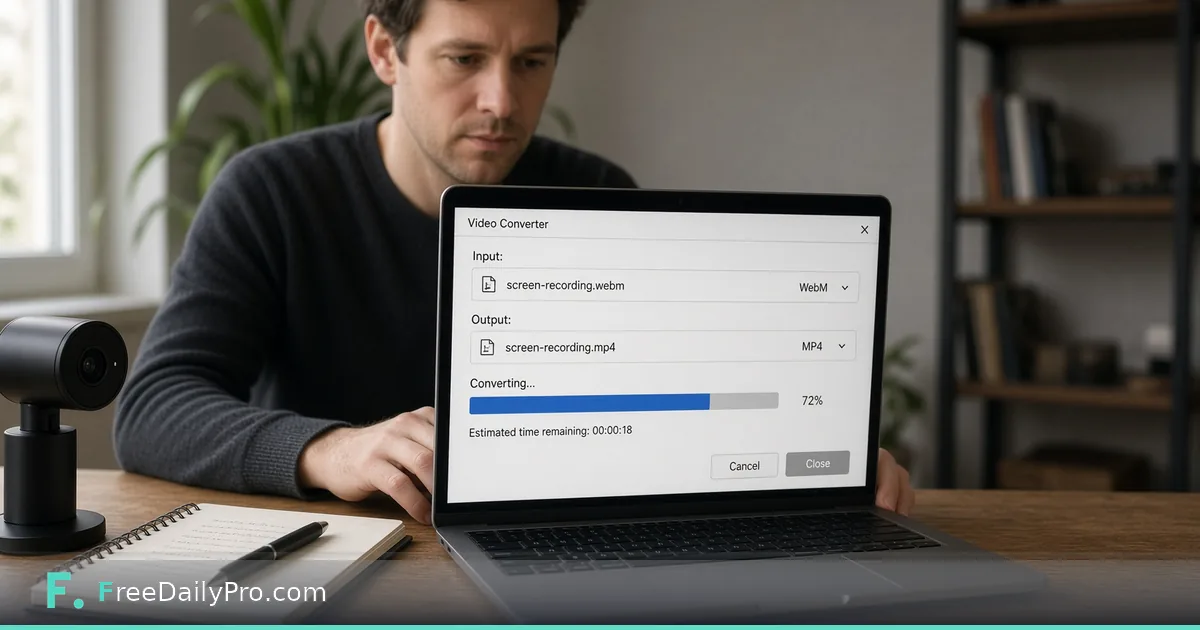
Say the recording is a WebM of about 46 MB, just under the trial limit, and the portal wants an MP4. You drop it in and pick MP4. Because the source is WebM, it is not copied; it is re-encoded to H.264 with AAC at 128 kilobits per second for the sound. The status line shows progress and you can press Stop at any time.
When it finishes, a summary sentence reports the original format and size, the new format and size, the percentage change and whether the file was re-encoded or copied. If a WebM becomes more than 25 percent bigger as an MP4, the page adds a note that this is normal: H.264 is often larger than WebM for the same picture quality. If the resulting size is a problem, the next stop is Compress Video with a size target.
The same screen applies to a clip from an iPhone saved as .mov. If its video is H.264 with AAC, converting to MP4 is a quick re-wrap and the summary says so. If the phone recorded in a newer codec such as HEVC, the tool has to take the slow path, and whether a particular phone clip can be read at all depends on what the in-browser engine understands.
Steps
- Drop the video on the page. A file that is not a video is rejected with a message.
- Look at the size warning, if one appears. A trial session works with files up to 50 MB, and the limit with a paid plan is 200 MB. Above the limit the Convert button is disabled.
- Choose the output format from the menu.
- Press Convert and watch the status line. A quick job means a re-wrap; a long one means re-encoding.
- Read the summary under the status bar and play the preview.
- Download. The file keeps the original name with the new extension. If the extension would be the same as the input, the tool adds "_converted" so your original is not overwritten in your Downloads folder.
Mistakes and how to spot them
Converting when the real problem is size. A portal that rejects at 25 MB will reject an MP4 of 25.4 MB just as firmly. Check the cap before choosing a tool, and if both format and size are wrong, convert first and then compress.
Choosing WebM for a website out of habit. For embeds and uploads, MP4 for web plays almost everywhere, while WebM adds encode time and gives you a lower-resolution cap.
Judging quality from the thumbnail. After a re-encode, scrub to a moment with small text, because text edges soften first. After a re-wrap there is nothing to check, since the streams are untouched.
Trimming after converting. Cutting with Trim Video before you convert saves encode time on footage you were going to delete anyway.
Ignoring a "cannot read" error. If processing fails straight away, the clip is probably in a codec the engine cannot decode or the file is damaged. Re-exporting from the original app often fixes it.
Where this fits in a video workflow
Recording, trimming, converting, compressing is a sensible order for most capture work, because each step shrinks the next step's job. The sibling guide on getting a recording under an upload cap covers the last step, and cutting a clip to length covers the first. If you only need the narration, Extract Audio is a separate tool, and everything video-related is grouped under video tools.
Privacy and the engine download
The conversion happens in your browser, so the video is not uploaded to a FreeDailyPro server. The processing engine itself is fetched when you first use the tool. If a firewall blocks that fetch, the page tells you it could not download the engine rather than failing silently. Remember that the summary line is the final word on your own file: it states whether the clip was copied into the new wrapper or re-encoded.
What format does your portal, editor or client insist on that is not on the menu? Send it through the contact page.