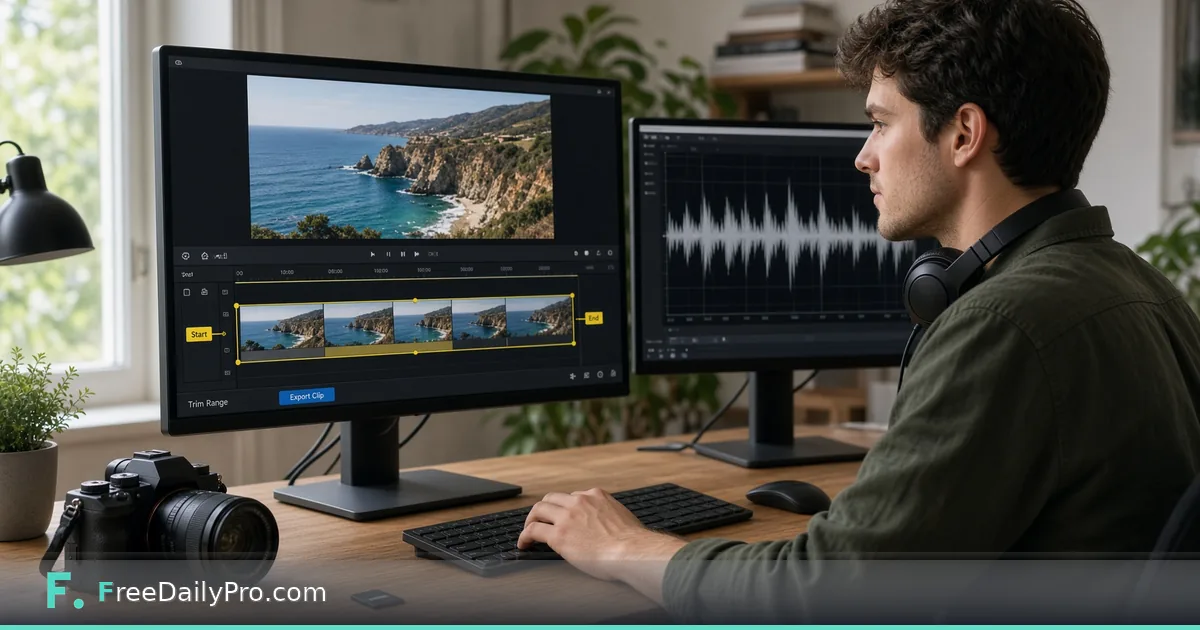
Cut Two Good Takes From a 4-Minute Screen Recording
Trim several segments from one video, choose Exact or Fast cutting, and merge the pieces into a single MP4 in your browser.
A four-minute product demo almost always contains a false start, a cough and a long pause while the page loads, wrapped around two stretches you actually want. Trim & Cut lets you mark each keeper as its own segment on one video, download them separately, or join them into a single file, all inside the browser.
The clip below shows the segment workflow.

Plan the cuts before you open the tool
Scrub through the recording once and write down start and end times. For our example, a 4:00 screen recording, the keepers are 0:18 to 1:42 (the intro and first feature, 84 seconds) and 2:10 to 3:05 (the second feature, 55 seconds). Together that is 139 seconds, or 2:19 of finished video, which is a little over half of the original.
Size matters before anything else. A 720p screen recording at around 1.5 Mbps comes to roughly 45 MB for four minutes (240 seconds times 1.5 divided by 8). The tool shows a notice if the file is too large: trial use supports files up to 50 MB, a paid plan allows up to 200 MB, and anything beyond that is refused. A nine-minute phone clip at 1080p can easily pass that ceiling, so check the file size in your file manager first, or reduce it with Compress Video.
Steps in the tool
- Drop the video onto the page. A preview player appears, and the length is shown, for example "Video length: 4:00.0 (240.0 seconds)".
- Pick the cut type. Exact is selected by default. Fast is the alternative; the differences are covered below.
- The first segment starts out covering the whole video. Type the start and end for your first keeper. Times can be plain seconds (102), minutes and seconds (1:42) or hours, minutes and seconds.
- Press Add Segment for the second keeper and type 2:10 and 3:05. A slim bar above the segments shades each selected part against the full length, which makes an accidental overlap or typo obvious.
- If you would rather mark points by eye, play the video, pause at the moment you want, and press "Set start to player time" or "Set end to player time" on that segment.
- Press Trim All Segments. The progress line says which segment is being cut.
- Download each segment, or press Merge All & Download to get one file with the segments in the order listed. Merging needs at least two finished segments.
Exact or Fast
Exact cuts at the times you typed and re-encodes the clip to MP4, using H.264 video and AAC audio. It takes longer, but the start is where you asked it to be, and the result plays almost anywhere. Fast copies the video without re-encoding, so it finishes in seconds and loses no quality, but it can only begin on a key frame. The clip may therefore start up to a few seconds before your chosen time. If that would leave a clip with no picture at the start, the tool switches to an exact cut for that segment and tells you.
For a demo where the first word matters, use Exact. For a long lecture where a couple of seconds of lead-in does not matter and speed does, Fast is reasonable. After the run, the message on screen says which method was used, and a Fast clip keeps the original file extension while Exact and merged clips are MP4.
What to do about the merged result
Merging re-encodes the joined file, which is why it takes longer than the cuts themselves. If you only need the two parts to sit next to each other in an editor, download them separately and skip the merge. If the merged file needs a different format, run it through Convert Video, and if you want the narration alone as audio, Extract Audio pulls it out. To join clips that did not come from the same recording, use Merge Videos.
Things that commonly go wrong
An end time earlier than the start, or a start beyond the length of the video, stops the run with a message and nothing is processed. A segment edited after trimming loses its finished result and needs to be run again, so make all corrections before pressing Trim All Segments. Some phone-recorded .mov files use a codec the in-browser engine cannot read; if processing fails straight away, re-export the video from the phone's own share options and try again.
A smaller trap is the early start after a Fast cut: because the clip begins at an earlier key frame, the first moments may show action from just before your chosen time. If the opening matters, listen to the first second of every download before you publish it.
How it handles your file
The video is cut inside your browser and is not uploaded. The cutting engine itself, about 25 MB, is downloaded from a public content network the first time you trim in a session. A strict company network may block that download, in which case you will see a message saying the engine could not be fetched. Longer or higher-resolution videos need time and memory, so close heavy tabs and keep the page open until the progress finishes; a Stop button is shown while work is running.
Your trial use is counted when you download a result, not when you drop the file, so you can check the preview and the timeline bar without spending anything. Trial use covers 10 uses a day.
A short routine for each finished clip
Play each downloaded segment from the beginning to the end. Check that the first word is not clipped and that the last word is finished. Give the files names that say what they contain, such as demo-intro-feature1.mp4 and demo-feature2.mp4. Keep the original recording until the final video has been published and approved. For more on the toolset, see video tools, and for size reduction see the article on compressing video.
Which cutting job would you like walked through next: lecture highlights, a phone clip for social media or trimming silence from a webinar recording? Tell us on the contact page.