Universal File Converter
Drop any file, see every real format it can become -- images, PDF, Excel, PowerPoint, and text
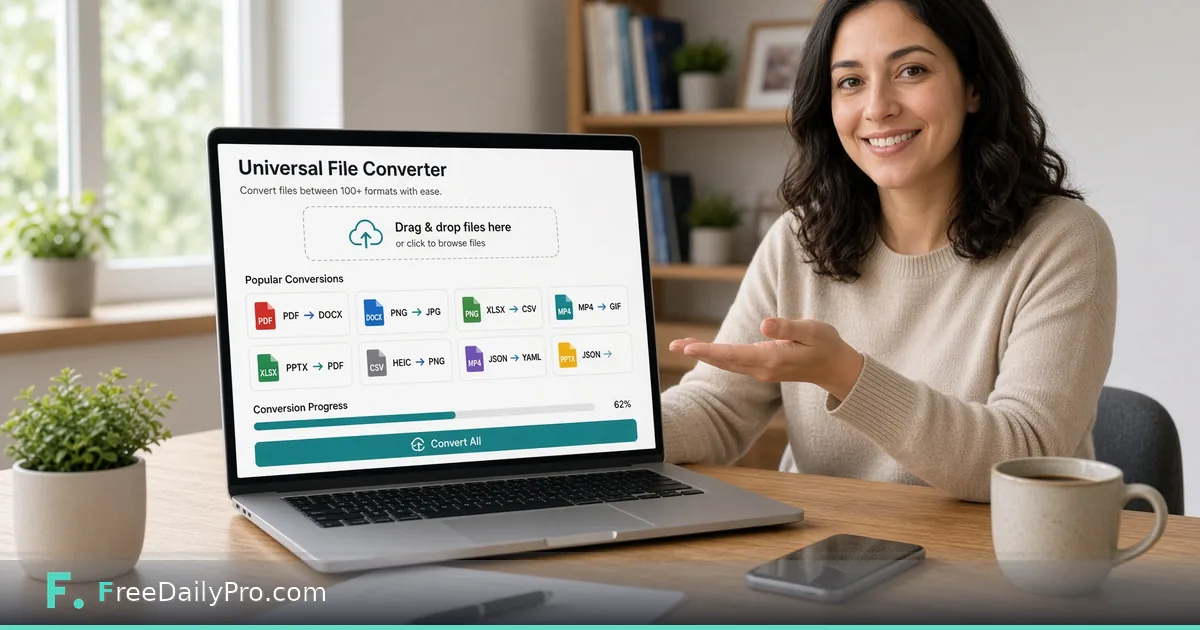
Drop a file. See every real format it can become.
Prefer to pick the formats yourself? Choose them here -- or skip this and just drop your file below; we'll detect it and show every valid target automatically.
Drop a file to see what it can become
Works with any file size -- files over 50MB may just take a little longer
What is this tool?
Drops in any file and shows only the formats it can genuinely become -- a PDF shows Word/Excel/JPG/etc. as real options, an image shows PDF/resize/crop/other-image-formats, and so on. Nothing is offered that isn't actually implemented for that specific file type.
How to use it
Upload a file to see its real conversion targets, then pick one. Every step -- the original upload, each edit (crop, resize, rotate, watermark, and more, depending on the file type), and the converted result -- stays visible as its own separately downloadable stage, so nothing gets overwritten as you keep working. Continue editing or converting from any stage, not just the most recent one.
If you're not sure this is the right tool for a specific, repeated task -- always converting PDFs to Word, say -- the dedicated single-purpose tool for that exact conversion (PDF to Word, in this example) loads faster and skips the extra "what do you want to convert to" step, since it already knows. This tool is built for when you're not sure what you need yet, or need to chain several different operations on the same file in one place.
How to use this app
- Drop a file -- an image (JPG, PNG, WebP), a PDF, a text file, a spreadsheet, or a PowerPoint presentation.
- The tool detects what you uploaded and shows only the output formats that genuinely work for that file type -- never a dead-end option.
- Pick a target format. Each one runs the exact same conversion logic as that format's own dedicated tool elsewhere on the site.
- Download the result, or hit "Start over" to convert a different file.
Tips
- This tool deliberately supports fewer conversions than a full permutation of every format on the site -- each one here is a real, working conversion reused from its own dedicated tool, not a new implementation. If a pairing you need isn't offered, the dedicated tool for that specific conversion may still exist elsewhere on the site even if it's not listed here yet.
- PDF to Excel only works when the PDF actually contains table-shaped data -- a PDF that's just prose won't have anything to extract.
- Image to Text uses on-device OCR (the same engine as the standalone OCR tool) -- works best on clear, high-contrast text, not stylized fonts or low-resolution photos.
Frequently asked questions
More from Converters & Calculators: